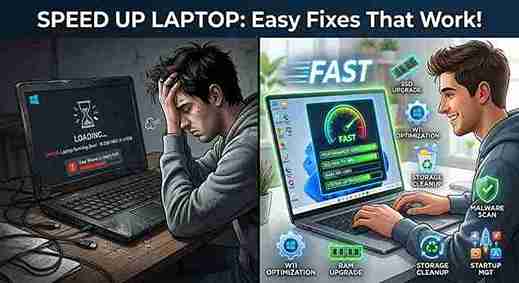
The Day My Laptop Took Nearly Five Minutes to Start
Speed Up Laptop was my biggest dream when I had an old laptop. I still remember the moment I realized something was seriously wrong with my laptop.I turned it on to finish an important piece of work, expecting to be ready in a minute or two. Instead, I sat there staring at the loading screen for what felt like forever.
After Windows finally loaded, I clicked on Chrome.
Nothing happened.
I clicked again.
Another long wait.
By the time Chrome opened, I had already lost my patience.
At first, I thought my laptop was simply getting old. I even started browsing online stores, looking at the prices of new laptops.
But before spending money, I decided to see if I could fix the one I already had.
That decision saved me hundreds of dollars.
Over the next few days, I tested different methods, removed unnecessary files, disabled useless startup apps, cleaned the cooling vents, and made a few small upgrades.
The difference was incredible.
My laptop booted much faster, programs opened almost instantly, and I could work without constantly waiting for everything to respond.
If you’re searching for ways to speed up laptop performance, you’ve come to the right place.
The good news is that a slow laptop doesn’t always mean you need a new one. In many cases, a few simple changes can make an older computer feel surprisingly fast again.
This guide shares the exact methods that worked for me, explained in plain English so anyone can follow along.
How I Knew My Laptop Was Getting Slower
The slowdown didn’t happen overnight.
It happened little by little until one day I couldn’t ignore it anymore.
Here are the warning signs I noticed.
It Took Forever to Start
This was the biggest clue.
When my laptop was new, it started in less than a minute.
Later, booting Windows took several minutes.
If your laptop spends more time loading than working, something needs attention.
Programs Opened Very Slowly
Opening Microsoft Word shouldn’t take a minute.
Neither should Chrome.
But that’s exactly what was happening.
Even simple applications felt heavy.
Sometimes I clicked an icon and wondered if I had clicked it at all.
The Fan Was Always Loud
The cooling fan rarely stopped spinning.
Even while browsing the internet, it sounded like my laptop was trying to take off.
That usually means the processor is working harder than it should.
Everything Started Freezing
I noticed small freezes at first.
The mouse would stop moving for a second.
Videos paused unexpectedly.
Typing became delayed.
Those small interruptions eventually became a daily frustration.
Multitasking Became Impossible
I normally keep several browser tabs open while writing.
One day I opened Chrome, Spotify, and Microsoft Word together.
The laptop slowed down so much that switching between windows became painful.
That’s when I knew something had to change.
Why Laptops Become Slow Over Time
One thing surprised me while researching this problem.
Most laptops don’t suddenly become slow.
Instead, years of small issues build up until performance starts suffering.
Let’s look at the most common reasons.
Too Many Startup Programs
This turned out to be one of the biggest problems on my laptop.
Every time Windows started, dozens of programs launched automatically.
Some of them included:
- Discord
- Steam
- Adobe Creative Cloud
- Spotify
- Microsoft Teams
- Printer software
I wasn’t even using most of them.
Yet they were quietly slowing down every startup.
Your Storage Is Almost Full
Computers need free storage to work efficiently.
If your drive is nearly full, Windows has less room for temporary files and updates.
I checked mine and discovered less than 8 GB of free space.
After cleaning unnecessary files, performance improved almost immediately.
Background Apps Never Stop Running
Some apps continue working even after you’ve closed them.
Cloud storage services, messaging apps, launchers, and update managers often run silently in the background.
One or two isn’t a problem.
Twenty of them definitely is.
Temporary Files Build Up
Windows creates temporary files every day.
They’re useful for short periods but often remain long after they’re needed.
Over several years, these files can occupy several gigabytes.
I had no idea how much unnecessary data was hiding on my laptop until I cleaned it.
Malware and Unwanted Software
Not every slowdown comes from Windows itself.
Sometimes unwanted software is the real problem.
I once downloaded a free video converter from an unfamiliar website.
Soon afterward, strange pop-ups started appearing, and the laptop became noticeably slower.
After removing the unwanted software, everything improved.
Since then, I only download programs from trusted sources.
Dust Causes Overheating
This wasn’t something I considered at first.
Then I looked at the air vents.
They were packed with dust.
Because the laptop couldn’t cool itself properly, the processor reduced its speed to avoid overheating.
Cleaning the vents made the fan much quieter and noticeably improved performance.
An Old Hard Drive
If your laptop still uses a traditional hard disk drive (HDD), it may simply be limited by older hardware.
My previous laptop had an HDD.
Later, I upgraded to a solid-state drive (SSD).
The improvement was unbelievable.
Boot times dropped from several minutes to less than twenty seconds.
Applications opened almost instantly.
For me, it was the single biggest upgrade I ever made.
Before You Start Changing Anything
Before trying random fixes, spend a few minutes checking your laptop’s current condition.
This helps you identify the real problem instead of guessing.
Here’s what I usually check first.
Storage Space
Open Settings > System > Storage.
If your drive is almost full, freeing space should be one of your first priorities.
RAM Usage
Press Ctrl + Shift + Esc to open Task Manager.
Click the Performance tab.
If your memory usage is constantly above 80%, too many programs are running at once.
Startup Programs
Still inside Task Manager, open the Startup Apps section.
You’ll probably find several programs launching automatically that don’t need to.
Windows Updates
Go to:
Settings > Windows Update
Installing pending updates can fix bugs, improve stability, and sometimes increase performance.
Disk Type
Open Task Manager, then the Performance tab.
Check whether your system drive is an SSD or an HDD.
This information becomes important later because upgrade recommendations depend on it.
The Biggest Mistake I Almost Made
When my laptop became painfully slow, I assumed the hardware was dying.
I nearly bought a new laptop.
Thankfully, I spent one weekend trying to fix it first.
Most of the slowdown had nothing to do with the processor.
It came from years of accumulated clutter, unnecessary startup programs, limited free storage, and poor maintenance.
Those problems were completely fixable.
That experience taught me something valuable.
A slow laptop doesn’t automatically mean an old laptop.
Sometimes it simply needs a proper cleanup.
Now that you understand why laptops become slow, it’s time to start fixing the problem.
Simple Fixes That Made My Laptop Feel Faster in Less Than an Hour
Once I understood what was slowing my laptop down, I stopped looking for miracle software.
Instead, I focused on fixing one problem at a time.
Some changes only took a couple of minutes, while others required a little patience.
The surprising part?
Most of the improvements didn’t cost me anything.
If you’re trying to speed up laptop performance, start with these simple fixes before thinking about replacing your computer.
Fix #1: Restart Your Laptop Properly
This sounds obvious, but I used to make one mistake.
I almost never restarted my laptop.
Instead, I closed the lid whenever I finished working.
Weeks would pass without a proper restart.
Eventually, background processes piled up, memory stayed occupied, and the system became sluggish.
Now I restart my laptop every few days.
It clears temporary processes and gives Windows a fresh start.
How to Restart
- Click the Start menu.
- Select Power.
- Choose Restart instead of Shut Down.
If you haven’t restarted your laptop in a while, try this before doing anything else.
Fix #2: Disable Unnecessary Startup Programs
This was the first change that made a noticeable difference.
When I checked my startup apps, I found more than a dozen programs launching every time Windows started.
Some of them included:
- Spotify
- Microsoft Teams
- Steam
- Adobe Updater
- Discord
- OneDrive
- Zoom
I wasn’t using most of them immediately after turning on my laptop.
So why let them slow everything down?
Here’s How
- Press Ctrl + Shift + Esc.
- Open Task Manager.
- Click Startup Apps.
- Disable programs you don’t need at startup.
Be careful not to disable important Windows services.
Stick to third-party apps you’re familiar with.
After making this change, my laptop reached the desktop much faster.
Fix #3: Free Up Disk Space
My laptop’s storage was almost full.
That alone was affecting performance.
Windows needs free space for updates, temporary files, and virtual memory.
I started deleting:
- Old videos
- Duplicate photos
- Downloads
- Installation files
- Unused documents
I also emptied the Recycle Bin.
Together, these small changes recovered nearly 25 GB.
Check Your Storage
Go to:
Settings > System > Storage
Windows will show exactly what’s using your disk space.
Start with the largest categories.
Fix #4: Delete Temporary Files
This was one of the easiest improvements.
Windows creates temporary files while installing updates, browsing the internet, and running applications.
Many of those files stay on your computer long after they’re needed.
Steps
- Open Settings.
- Select System.
- Click Storage.
- Choose Temporary Files.
- Review the list.
- Delete the unnecessary files.
I recovered several gigabytes in less than five minutes.
Fix #5: Uninstall Programs You Never Use
I’ll admit it.
I had software installed that I completely forgot about.
Old photo editors.
Games.
PDF tools.
Trial software.
Every program occupied storage, and some even ran background services.
Ask Yourself
- Have I opened this program in the last six months?
- Do I actually need it?
- Can I reinstall it later if necessary?
If the answer is no, uninstall it.
To Remove Software
- Open Settings.
- Go to Apps.
- Select Installed Apps.
- Choose the software.
- Click Uninstall.
My program list became much cleaner, and Windows felt lighter afterward.
Fix #6: Empty the Recycle Bin
I almost forgot about this one.
Deleting files doesn’t immediately remove them from your laptop.
They’re moved to the Recycle Bin first.
Until you empty it, they continue using storage.
I found nearly 8 GB of deleted files waiting there.
One click gave me all that space back.
Fix #7: Turn On Storage Sense
This is one of the most useful Windows features that many people never use.
Storage Sense automatically removes temporary files and empties the Recycle Bin based on your preferences.
I enabled it once and barely had to think about storage cleanup again.
Enable Storage Sense
- Open Settings.
- Go to System > Storage.
- Turn on Storage Sense.
- Choose how often Windows should clean temporary files.
It’s a simple feature that saves a lot of manual work.
Fix #8: Update Windows
I used to postpone Windows updates because I thought they would slow my laptop down.
Ironically, skipping updates sometimes caused more problems.
Updates often include:
- Bug fixes
- Performance improvements
- Security patches
- Driver updates
Check for Updates
- Open Settings.
- Click Windows Update.
- Select Check for Updates.
- Install any available updates.
- Restart your laptop.
Just make sure you’re connected to power before starting a large update.
Fix #9: Scan for Malware
A few years ago, I downloaded a free program from an unfamiliar website.
Within days, my browser became slow, strange pop-ups appeared, and my laptop struggled with even simple tasks.
A malware scan found several unwanted programs running in the background.
After removing them, performance improved immediately.
Use Windows Security
- Open Windows Security.
- Click Virus & Threat Protection.
- Select Quick Scan.
For a more thorough check, run a Full Scan if you haven’t scanned your laptop recently.
Small Improvements Added Up Quickly
None of these fixes completely transformed my laptop on their own.
But together, they made a huge difference.
After:
- Removing startup apps
- Cleaning storage
- Deleting temporary files
- Uninstalling unused software
- Updating Windows
- Running a malware scan
my laptop became much more responsive.
Programs opened faster.
The fan became quieter.
Boot time was cut almost in half.
Best of all, I hadn’t spent a single dollar.
One Lesson I’ll Never Forget
When people ask me how to speed up laptop performance, they often expect a secret trick or a magic program.
The truth is much simpler.
A laptop becomes slow because dozens of small problems build up over time.
Fixing those problems one by one is what brings the speed back.
There’s no shortcut.
But there is a process that works.
You’ve now completed the first round of improvements, and your laptop should already feel noticeably faster.
Advanced Upgrades That Gave My Laptop a Second Life
After finishing the basic cleanup, my laptop was already performing much better.
But I still felt there was room for improvement.
Some tasks, like opening large Excel files or editing photos, were still slower than I wanted.
That’s when I started looking at hardware upgrades and a few advanced Windows settings.
I was surprised by how much difference they made.
If you’ve already tried the basic fixes and still want to speed up laptop performance, these methods are worth considering.
Fix #10: Upgrade to an SSD
If I had to recommend just one upgrade, this would be it.
My old laptop came with a traditional hard disk drive (HDD).
It worked, but everything felt slow.
- Windows took several minutes to load.
- Programs opened slowly.
- File transfers were painfully slow.
I replaced the HDD with an SSD.
The difference honestly felt like buying a new laptop.
My boot time dropped from nearly four minutes to around fifteen seconds.
Applications opened almost instantly.
Even simple tasks like searching for files became much faster.
How to Check if You Have an HDD or SSD
- Press Ctrl + Shift + Esc to open Task Manager.
- Click the Performance tab.
- Select your disk.
Windows will usually display whether it’s an SSD or HDD.
If your laptop still uses an HDD, upgrading to an SSD is one of the best investments you can make.
Fix #11: Add More RAM
RAM is your laptop’s short-term memory.
When there’s not enough of it, Windows starts using the storage drive instead, which is much slower.
I noticed this whenever I had:
- Chrome with many tabs open
- Microsoft Word
- Spotify
- File Explorer
Running all of them together made my laptop struggle.
After upgrading from 4 GB to 8 GB of RAM, multitasking became much smoother.
Signs You May Need More RAM
- Apps freeze while switching between them.
- Your browser slows down with several tabs open.
- Memory usage stays above 80% in Task Manager.
- The laptop becomes slow during multitasking.
Before buying RAM, check your laptop’s maximum supported capacity.
Fix #12: Clean Dust From the Cooling System
This is something I ignored for years.
Eventually, the fan became extremely loud.
The laptop felt hot even while browsing the internet.
When I looked inside the cooling vents, they were packed with dust.
That dust blocked airflow, causing the processor to overheat.
To protect itself, the processor automatically reduced its speed.
After cleaning the vents carefully with compressed air, the fan became much quieter.
The laptop also maintained better performance during long work sessions.
A Few Safety Tips
- Turn the laptop off first.
- Disconnect the charger.
- Avoid using a household vacuum cleaner inside the laptop.
- If you’re not comfortable opening the laptop, ask a qualified technician for help.
Fix #13: Adjust Windows Performance Settings
Windows includes visual effects that look nice but consume system resources.
On older laptops, disabling some of these effects can improve responsiveness.
Here’s How
- Search for Adjust the appearance and performance of Windows.
- Open the settings.
- Choose Adjust for best performance.
If you prefer, you can manually keep a few visual effects while disabling the rest.
The interface may look a little simpler, but the laptop often feels quicker.
Fix #14: Reduce Browser Extensions
This one surprised me.
I had installed browser extensions over several years.
Some blocked ads.
Others managed passwords, took screenshots, checked grammar, or changed themes.
Many of them loaded every time Chrome started.
Check Your Extensions
Open your browser’s extensions page and ask yourself:
- Do I still use this?
- Is it actually helping me?
- Can I remove it?
I deleted more than half of mine.
Chrome started faster and used less memory.
Fix #15: Close Background Apps
Sometimes the slowest programs aren’t the ones you can see.
They’re the ones quietly running in the background.
I opened Task Manager and found several applications consuming memory without me even using them.
Examples included:
- Cloud syncing software
- Chat applications
- Game launchers
- Automatic updaters
Closing unnecessary background apps immediately reduced memory usage.
Just be careful not to end important Windows processes.
Fix #16: Keep Drivers Updated
Drivers help Windows communicate with your hardware.
Outdated drivers can sometimes lead to:
- Poor graphics performance
- Audio problems
- Slow Wi-Fi
- System instability
Most driver updates arrive through Windows Update.
For graphics cards from NVIDIA, AMD, or Intel, you can also use their official software to check for updates.
Keeping drivers current helps your laptop perform more reliably.
Fix #17: Check Your Laptop’s Temperature
I never realized how much heat affected performance until I monitored it.
When laptops become too hot, they automatically reduce processor speed to prevent damage.
This is called thermal throttling.
Common causes include:
- Dust buildup
- Blocking the air vents
- Using the laptop on a bed or pillow
- Running demanding software for long periods
Try using your laptop on a hard, flat surface so air can circulate properly.
A cooling pad can also help if you regularly perform heavy tasks like gaming or video editing.
Fix #18: Reset Windows as a Last Resort
If you’ve tried every other solution and your laptop is still painfully slow, resetting Windows may help.
A reset removes software problems that have built up over time.
However, it’s important to back up your files first.
Before Resetting
- Save important documents.
- Back up photos and videos.
- Export browser bookmarks.
- Make sure you know your Microsoft account password.
To Reset Windows
- Open Settings.
- Go to System.
- Select Recovery.
- Choose Reset this PC.
- Follow the instructions.
For many people, this won’t be necessary.
Most performance problems are solved long before reaching this step.
Common Mistakes That Make Laptops Slower
While fixing my own laptop, I realized I had been making several mistakes without even noticing.
Never Restarting the Laptop
Closing the lid isn’t the same as restarting.
A fresh restart clears temporary processes and memory.
Now I restart my laptop every few days.
Installing Every Free Program
Over the years, I installed dozens of programs “just to try them.”
Many stayed on the laptop even after I stopped using them.
Unused software takes up storage and may continue running background services.
Ignoring Windows Updates
I used to delay updates because I thought they were annoying.
In reality, they often fixed bugs and improved performance.
Filling the Storage Completely
Keeping only a few gigabytes of free space leaves Windows with very little room to work efficiently.
I now try to keep at least 15% to 20% of my storage free.
Using Too Many Browser Tabs
I’ll admit it.
I used to have more than fifty Chrome tabs open.
Even a powerful laptop struggles with that.
Closing tabs I wasn’t using noticeably reduced memory usage.
The Biggest Lesson I Learned
The biggest surprise wasn’t discovering one magical trick.
It was realizing that laptop performance depends on many small habits.
Cleaning unnecessary files.
Restarting regularly.
Keeping software updated.
Managing startup apps.
Taking care of the hardware.
Together, these habits transformed my slow laptop into a machine I actually enjoyed using again.
You’ve now learned almost every method I personally use to speed up laptop performance.
Frequently Asked Questions, Maintenance Checklist, and Final Thoughts
By the time I finished all these improvements, my laptop felt completely different.
It wasn’t just a little faster.
It became enjoyable to use again.
Programs opened without long delays, Windows booted quickly, and I could switch between tasks without constant freezing.
The best part?
I didn’t need to buy a new laptop.
If you’ve followed the steps in this guide, there’s a good chance you’ve already noticed a similar improvement.
Before we finish, let’s answer a few common questions and look at some simple habits that will help keep your laptop running smoothly.
Frequently Asked Questions
How can I speed up my laptop without spending money?
You can improve your laptop’s performance significantly without buying any hardware.
Start by:
- Restarting your laptop regularly.
- Disabling unnecessary startup programs.
- Deleting temporary files.
- Freeing up storage space.
- Uninstalling unused software.
- Running a malware scan.
- Updating Windows.
These simple steps made a noticeable difference on my own laptop before I upgraded anything.
Will deleting temporary files affect my personal documents?
No.
Temporary files are created by Windows and applications to help them perform certain tasks.
Removing them won’t delete your:
- Photos
- Videos
- Documents
- Music
- Personal files
Windows will create new temporary files when needed.
Is an SSD really worth upgrading?
Absolutely.
Out of every improvement I made, upgrading from an HDD to an SSD had the biggest impact.
The laptop:
- Started much faster.
- Opened applications almost instantly.
- Copied files more quickly.
- Felt more responsive throughout the day.
If your laptop still has a traditional hard drive, an SSD is one of the best upgrades you can make.
How much RAM does a laptop need?
It depends on how you use your laptop.
Here are some general recommendations:
- 4 GB RAM: Basic web browsing and light office work.
- 8 GB RAM: Everyday use, multitasking, online classes, and productivity.
- 16 GB RAM: Gaming, programming, photo editing, and heavier workloads.
- 32 GB or more: Professional video editing, 3D design, and advanced development work.
For most users today, 8 GB is a comfortable starting point.
Can viruses slow down a laptop?

Yes.
Malware often runs silently in the background.
It may:
- Consume processor power.
- Use memory.
- Display unwanted advertisements.
- Install additional unwanted software.
Running regular security scans helps keep your laptop healthy.
Should I use third-party cleaning software?
Personally, I avoid installing multiple optimization programs.
Many promise dramatic speed improvements but deliver very little.
Windows already includes useful tools like:
- Storage Sense
- Disk Cleanup
- Windows Security
- Task Manager
These built-in features are enough for most users.
How often should I clean my laptop?
I follow a simple routine.
Every month I:
- Delete temporary files.
- Empty the Recycle Bin.
- Review Downloads.
- Check startup apps.
- Install Windows updates.
Every few months I also:
- Clean the cooling vents.
- Remove unused software.
- Check available storage.
This routine keeps my laptop running smoothly throughout the year.
Quick Laptop Speed Checklist
Whenever my laptop starts feeling slower than usual, I work through this checklist.
✔ Restart the laptop.
✔ Disable unnecessary startup programs.
✔ Delete temporary files.
✔ Empty the Recycle Bin.
✔ Free up storage space.
✔ Remove software you no longer use.
✔ Scan for malware.
✔ Install Windows updates.
✔ Update important drivers.
✔ Close unnecessary background apps.
✔ Remove unused browser extensions.
✔ Clean dust from the cooling vents.
✔ Keep at least 15% to 20% of storage free.
✔ Upgrade to an SSD if you’re still using an HDD.
✔ Add more RAM if multitasking feels slow.
Following this checklist only takes a little time, but it can prevent months of frustration.
Simple Habits That Keep a Laptop Fast
Fixing a slow laptop is one thing.
Keeping it fast is another.
These habits have helped me avoid the same problems from coming back.
Restart Instead of Always Sleeping
Sleep mode is convenient.
But restarting every few days clears memory and refreshes the system.
I now make it a habit to restart my laptop regularly.
Keep Your Desktop Organized
At one point, my desktop was covered with files.
Documents.
Screenshots.
Videos.
Folders everywhere.
While this wasn’t the biggest cause of slow performance, organizing everything made it much easier to find files and reduced unnecessary clutter.
Download Software Only From Trusted Sources
I’ve learned this lesson the hard way.
Programs from unknown websites sometimes include unwanted software that slows your computer.
Now I only download applications from the developer’s official website or the Microsoft Store whenever possible.
Don’t Ignore Warning Signs
If your laptop suddenly starts:
- Taking longer to boot,
- Freezing more often,
- Making the fan work constantly,
- Running unusually hot,
don’t wait months before checking the problem.
Small issues are much easier to fix than major ones.
Keep Enough Free Storage
Windows performs best when it has room to work.
I always try to leave at least 15% to 20% of my storage free.
That simple habit has prevented many performance problems.
When It Might Be Time for a New Laptop
Sometimes, even after trying every optimization, the hardware simply can’t keep up with modern software.
You may want to consider upgrading your laptop if:
- Your processor is very old.
- The motherboard doesn’t support additional RAM.
- An SSD upgrade isn’t possible.
- Repairs cost nearly as much as a replacement.
- Your daily work has become more demanding than your laptop can handle.
Even then, try the software fixes first.
Many people replace laptops that still have years of useful life left.
Final Thoughts
When my laptop first became painfully slow, I assumed replacing it was my only option.
Thankfully, I decided to spend some time troubleshooting instead.
That decision saved me money and taught me a valuable lesson.
Most slow laptops don’t suffer from one major problem.
They suffer from many small ones.
Startup apps accumulate.
Storage fills up.
Dust blocks the cooling system.
Unused software runs quietly in the background.
Temporary files pile up.
Fixing each of those issues one by one transformed my laptop into a machine that felt fast and reliable again.
If you’re trying to speed up laptop performance, don’t look for a miracle solution.
Start with the basics, work through the fixes patiently, and upgrade hardware only if it’s truly necessary.
A little maintenance can make a much bigger difference than most people expect.
Key Takeaways
- Most slow laptops can be improved without replacing them.
- Restart your laptop regularly instead of always using Sleep mode.
- Disable unnecessary startup programs to reduce boot time.
- Keep your storage clean and leave at least 15% to 20% free.
- Delete temporary files and uninstall software you no longer use.
- Scan for malware using Windows Security.
- Upgrade to an SSD for the biggest performance improvement.
- Add more RAM if you frequently multitask.
- Keep Windows and drivers updated.
- Clean the cooling vents to prevent overheating.
- Build good maintenance habits to keep your laptop fast over the long term.
I hope this guide helped you understand not only how to speed up laptop performance but also why laptops slow down in the first place. With a little care and regular maintenance, your current laptop can often stay fast and reliable for years, saving you the cost of an unnecessary replacement.