Overheating Phone Solution: 17 Proven Fixes 2026
A few months ago, I was sitting in a coffee shop trying to finish some work on my phone. After about twenty minutes, I noticed something strange. The back of my phone felt unusually warm. At first, I ignored it because I thought it was normal after watching a few YouTube videos.
Then things got worse.
The screen started lagging.
Apps opened slowly.
The battery dropped from 68% to 41% in less than half an hour.
My phone even displayed a warning saying it needed to cool down before I could continue using the camera.
That was the moment I realized overheating wasn’t just uncomfortable. It was affecting performance, battery life, and potentially the lifespan of my phone.
Like many people, my first instinct was to blame the battery. But after testing different settings, removing unnecessary apps, and changing a few daily habits, I discovered that several small issues were causing the problem together.
The good news?
Most overheating problems can be fixed without replacing your phone or spending money on repairs.
If your Android or iPhone feels hot while charging, gaming, browsing social media, or even sitting idle, this guide will walk you through practical solutions that actually work.
What Causes a Phone to Overheat?
Before trying random fixes, it’s worth understanding why phones heat up in the first place.
Every smartphone generates heat while working. That’s completely normal. The processor, battery, display, and wireless connections all produce heat whenever they’re active.
The problem starts when the phone can’t get rid of that heat quickly enough.
Here are the most common reasons.
Heavy Gaming
Modern games like PUBG Mobile, Call of Duty Mobile, Genshin Impact, and Fortnite push your phone’s processor and graphics chip to their limits.
The harder the processor works, the more heat it produces.
If you play while charging, the temperature rises even faster because the battery is generating heat at the same time.
Too Many Apps Running
Many people think closing an app means it’s completely shut down.
That’s not always true.
Messaging apps, social media apps, navigation apps, fitness trackers, and cloud backup services often continue running in the background.
Over time, dozens of background processes keep the CPU busy, causing unnecessary heat.
Charging Problems
Charging naturally creates heat.
However, certain situations make it much worse.
For example:
- Using a low-quality charger
- Charging under a pillow
- Fast charging in a hot room
- Playing games while charging
- Watching videos during charging
These habits can increase battery temperature significantly.
Software Bugs
Sometimes the issue isn’t hardware at all.
A poorly optimized software update or a buggy app can force the processor to work continuously.
I’ve personally experienced this after installing a new update. My phone became warm even while sitting on the table.
After the next software patch, the issue disappeared completely.
That’s why keeping your phone updated is more important than many people realize.
Direct Sunlight
Leaving your phone inside a parked car or using it outdoors on a sunny day can quickly raise its temperature.
Unlike laptops, smartphones have very limited cooling systems.
Even a few minutes under direct sunlight can trigger overheating warnings.
Old Battery
Batteries wear out over time.
After hundreds of charging cycles, they become less efficient and start producing more heat.
If your phone is three or four years old and overheats during simple tasks, the battery could be the real culprit.
Signs Your Phone Is Getting Too Hot
Not every overheating problem comes with a warning message.
Here are some signs I’ve noticed on different phones.
- The back of the phone feels very warm.
- Apps suddenly become slow.
- Battery drains unusually fast.
- Camera closes automatically.
- Screen brightness lowers on its own.
- Charging slows down.
- Games begin lagging.
- The phone restarts unexpectedly.
- You receive a temperature warning.
If several of these symptoms happen regularly, it’s time to fix the issue before it affects your battery or internal components.
Why You Shouldn’t Ignore an Overheating Phone
Many people think,
“My phone cools down after a while, so it’s probably fine.”
I used to think the same.
But repeated overheating can lead to problems such as:
- Faster battery wear
- Reduced overall performance
- Unexpected shutdowns
- Slower charging speeds
- Screen damage in extreme cases
- Shorter lifespan of internal components
The sooner you solve the overheating issue, the better your phone will perform over the long run.
17 Overheating Phone Solutions That Actually Work
After trying dozens of random tips from YouTube and online forums, I realized that most overheating issues don’t have a single cause. Usually, it’s a combination of settings, apps, charging habits, and the environment.
The fixes below are arranged from the easiest to the most advanced. Try them one by one. In many cases, you’ll notice an improvement before reaching the end of the list.
1. Close Apps Running in the Background
This was the first thing that made a noticeable difference for me.
One day I checked my recent apps and found over 20 apps still open. Some of them had been running since the previous day.
Even if you’re not actively using them, many apps continue syncing data, checking notifications, or tracking your location.
How to do it
On Android
- Open Recent Apps.
- Swipe away unused apps.
- Restart your phone once every few days.
On iPhone
- Open the App Switcher.
- Close apps you no longer need.
- Leave essential system apps alone.
This simple habit can reduce unnecessary processor usage and keep your phone cooler.
2. Remove Your Phone Case While Charging
I learned this by accident.
My phone always felt extremely hot during charging. One evening I removed the thick silicone case before plugging it in, and the temperature stayed much lower.
A heavy phone case traps heat, especially while fast charging or gaming.
If your phone becomes hot during charging, remove the case until charging is complete.
Just avoid placing the phone on metal or rough surfaces that could scratch it.
3. Lower Your Screen Brightness
The display is one of the biggest power consumers in any smartphone.
Keeping brightness at 100% for long periods forces the battery to work harder, especially outdoors.
Better approach
- Enable Auto Brightness.
- Reduce brightness indoors.
- Use Dark Mode if your phone has an OLED display.
- Lower the screen timeout to 30 seconds or 1 minute.
I noticed both lower temperatures and better battery life after making these changes.
4. Turn Off Features You Aren’t Using
Many wireless features continue searching for connections even when you don’t need them.
Examples include:
- Bluetooth
- GPS
- NFC
- Mobile Hotspot
- Nearby Device Scanning
If they’re left on all day, they add extra work for the processor and battery.
Whenever I’m working from home, I usually keep Bluetooth and GPS turned off unless I actually need them.
It’s a small habit that helps more than most people expect.
5. Keep Your Phone Out of Direct Sunlight
This one sounds obvious, but it’s surprisingly common.
I’ve seen people leave their phones:
- On a car dashboard
- Next to a sunny window
- On a beach towel
- Beside a laptop exhaust
Even a healthy phone can overheat quickly under direct sunlight.
If your phone becomes hot outside:
- Move into the shade.
- Stop using demanding apps.
- Remove the case.
- Let it cool naturally.
Never place a hot phone inside a refrigerator or freezer.
The sudden temperature change can create moisture inside the device, causing permanent damage.
6. Restart Your Phone Regularly
I used to restart my phone only after software updates.
Now I restart it every few days.
Why?
Because restarting clears temporary processes, refreshes memory, and stops apps that may be running in the background without your knowledge.
Think of it as giving your phone a short break.
It only takes a minute but can solve many minor performance issues.
7. Update Your Phone and Apps
Sometimes the problem isn’t your phone.
It’s the software.
A poorly optimized app can keep the processor busy even when you’re not using it.
I once installed a social media app update that caused my battery to drain rapidly and made the phone warm all day.
A week later, the developer released another update that fixed the issue completely.
Check for updates
- Install Android or iPhone system updates.
- Update apps from the Google Play Store or App Store.
- Remove apps that haven’t been updated in years.
Developers frequently release performance improvements that also reduce overheating.
8. Delete Apps You Rarely Use
A surprising number of apps continue working after installation.
Weather apps.
VPN apps.
Battery savers.
Wallpaper apps.
Cleaning apps.
Some constantly sync data or show background advertisements.
Every few months, I go through my installed apps and ask myself one simple question:
“Have I used this in the last three months?”
If the answer is no, I uninstall it.
My phone always feels faster afterward.
9. Free Up Storage Space
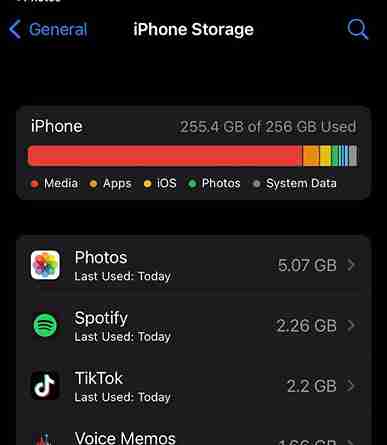
When your storage is almost full, your phone has less room for temporary files and system operations.
This can slow everything down and sometimes increase processor activity.
Try to keep at least 15% to 20% of your storage free.
Easy ways to free storage
- Delete duplicate photos.
- Remove old videos.
- Clear downloaded files.
- Uninstall unused games.
- Back up photos to cloud storage.
A cleaner phone usually performs better and stays cooler.
10. Avoid Using Your Phone While Charging
This was probably my biggest mistake.
I used to watch YouTube while charging.
Sometimes I’d even play games during charging.
The battery was charging while the processor was working at full speed.
That combination generated a lot of heat.
Now, whenever possible, I let the phone charge without using it.
It charges faster, stays cooler, and the battery lasts longer over time.
11. Use the Original Charger
Not every charger delivers stable power.
Cheap chargers often produce inconsistent voltage, making the battery work harder than necessary.
Whenever possible:
- Use the original charger that came with your phone.
- Buy certified replacements from trusted brands.
- Replace damaged charging cables immediately.
Saving a few dollars on a low-quality charger isn’t worth risking your phone.
12. Scan for Malware
It’s rare, but malicious apps can secretly use your processor to display ads, collect data, or perform other unwanted tasks.
Signs include:
- Phone heating while idle
- Fast battery drain
- Random pop-up ads
- Slow performance
Run a security scan using your phone’s built-in protection or a trusted mobile security app.
If an app looks suspicious, uninstall it immediately.
