
Speed up the internet was the exact phrase I searched one evening after spending almost an hour trying to watch a 15-minute YouTube video.
Every few seconds, the video stopped to buffer.
I refreshed the page.
I switched browsers.
I even blamed YouTube at first.
Nothing helped.
Then I tried opening another website, and it took forever to load.
That’s when I realized the problem wasn’t YouTube. It was my internet connection.
I honestly thought my internet provider was having a major outage. Before calling customer support, I decided to troubleshoot the problem myself.
I restarted the router, disconnected a few devices, moved the router to a better spot, and checked my internet speed.
To my surprise, the connection became much faster without spending a single dollar.
That experience taught me something important.
A slow internet connection isn’t always your provider’s fault. Sometimes, a few simple changes at home can make a huge difference.
If your slow internet problem is driving you crazy, this guide will walk you through the same practical fixes that worked for me. Everything is explained in simple language, so you don’t need to be a networking expert to follow along.
How I Knew My Internet Was Slower Than Normal
The slowdown didn’t happen overnight.
At first, I ignored the little signs.
Eventually, those small delays became impossible to ignore.
Here are the symptoms I noticed.
Videos Buffered Constantly
This was the most obvious sign.
Whether I watched YouTube or Netflix, the loading circle kept appearing every few minutes.
Even lowering the video quality didn’t completely solve the problem.
Websites Took Forever to Open
Normally, websites load within a few seconds.
Instead, I found myself waiting 15 to 20 seconds just to open simple pages.
Shopping websites, news sites, and even Google Search felt unusually slow.
Video Calls Started Freezing
During an online meeting, my voice kept cutting out.
The other person sounded robotic, and my video froze several times.
It became difficult to have a normal conversation.
If you attend online classes or work remotely, this can quickly become frustrating.
Downloads Became Painfully Slow
A file that normally downloads in two or three minutes suddenly needed almost half an hour.
That’s when I knew something definitely wasn’t right.
Online Games Started Lagging
I’m not a serious gamer, but I occasionally play online games with friends.
Instead of smooth gameplay, everything felt delayed.
Characters jumped across the screen, and actions responded seconds later.
High ping had become a real problem.
Why Does the Internet Become Slow?
One thing I learned while fixing my own connection is that there isn’t always one single cause.
Several small issues can combine to make your internet feel much slower than it actually is.
Let’s look at the most common reasons.
Too Many Devices Connected
I counted the devices using my WiFi one evening.
There were:
- Two smartphones
- One laptop
- A smart TV
- A tablet
- A gaming console
- Two smart speakers
Some devices were downloading updates without me even noticing.
No wonder my internet felt slow.
The more devices using the same connection, the less bandwidth each one receives.
Poor WiFi Signal
My router was sitting inside a wooden cabinet in the corner of the house.
At the time, I thought it looked neat there.
Unfortunately, it also weakened the WiFi signal.
Walls, furniture, and even large appliances can reduce wireless performance.
Your Router Needs a Restart
Just like phones and computers, routers can slow down after running continuously for weeks.
Mine hadn’t been restarted in over a month.
After a simple restart, the connection immediately became more stable.
Background Downloads
I later discovered that my laptop was downloading a large Windows update in the background.
Meanwhile, my phone was backing up photos to Google Photos.
Without realizing it, both devices were using a large portion of my internet speed.
Internet Provider Problems
Sometimes the issue really is outside your home.
Network maintenance, outages, or heavy traffic during busy hours can reduce internet performance.
That’s why it’s important to test your connection before assuming the router is broken.
Old Router Hardware
Technology changes quickly.
If your router is several years old, it may not support newer WiFi standards or faster internet plans.
An older router can become a bottleneck, even if you’re paying for high-speed internet.
Weak Router Placement
This was one of my biggest mistakes.
The router was surrounded by books, decorative items, and electronic devices.
After moving it into an open area, the signal became much stronger throughout the house.
Before Trying Random Fixes
When my internet slowed down, I almost started changing every setting I could find.
Thankfully, I stopped myself.
Changing random settings often creates more problems than it solves.
Instead, I checked a few basic things first.
Test Your Internet Speed
I used Speedtest by Ookla to see whether I was getting the speed I was paying for.
This gave me a clear starting point.
If your results are much lower than expected, you’ll know the problem is real.
Check Other Devices
I tested the connection on my phone and laptop.
If only one device is slow, the issue is probably with that device.
If every device is slow, the router or internet connection is more likely to be to blame.
Look at the Router Lights
Routers usually have indicator lights that show whether the internet connection is working properly.
A blinking red or orange light often signals a connection problem.
Checking these lights only takes a few seconds.
Ask Someone Else in the House
I asked my family whether their internet was also slow.
Everyone was experiencing the same issue.
That helped narrow down the problem quickly.
The Biggest Mistake I Made
When my internet first became slow, I immediately blamed my internet provider.
I almost spent an hour waiting for customer support.
The funny part?
The real problem was my own router placement and too many devices downloading updates at the same time.
After fixing those two things, my connection became noticeably faster.
That experience taught me not to jump to conclusions.
Sometimes the solution is much simpler than we expect.
Now that you know the most common reasons behind a slow connection, it’s time to start fixing them.
Simple Fixes That Instantly Improved My Internet Speed
After figuring out that the problem wasn’t my internet plan, I started testing one solution at a time.
I didn’t buy any expensive equipment.
I didn’t change my internet provider.
I simply worked through the basics.
To my surprise, those small changes made a much bigger difference than I expected.
If you’re trying to speed up internet performance, start with these easy fixes before spending money on new hardware.
Fix 1: Restart Your Router
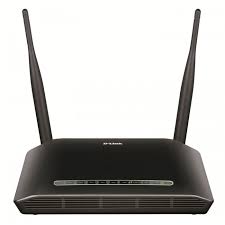
This was the first thing I tried.
Honestly, I didn’t expect much.
But after restarting the router, the connection became noticeably more stable.
Like computers and smartphones, routers can slow down after running for weeks without a restart.
Here’s How
- Turn off your router.
- Unplug the power cable.
- Wait for about 30 seconds.
- Plug it back in.
- Wait until all the indicator lights return to normal.
The whole process takes less than two minutes and often fixes temporary network problems.
Fix 2: Restart Your Phone or Laptop
Sometimes the internet isn’t the problem.
Your device might be.
I restarted my laptop after noticing that only it had a slow connection.
After the restart, webpages loaded much faster.
If only one device is experiencing slow internet, always restart it before changing router settings.
Fix 3: Move Closer to the Router
One evening I was working from the bedroom, which happened to be the farthest room from the router.
The WiFi signal kept dropping.
I walked into the living room where the router was located and immediately noticed faster speeds.
Distance matters more than many people realize.
If your connection improves when you’re closer to the router, weak signal strength is probably the issue.
Fix 4: Place the Router in a Better Location
I used to keep my router inside a TV cabinet because it looked cleaner.
Unfortunately, cabinets, walls, and large furniture block wireless signals.
After moving the router onto an open shelf near the center of the house, WiFi coverage improved almost everywhere.
The Best Place for a Router
- Place it in a central location.
- Keep it on a table or shelf instead of the floor.
- Avoid placing it behind furniture.
- Keep it away from microwaves and cordless phones.
- Make sure the antennas, if present, are positioned correctly.
A better location alone can improve your WiFi experience.
Fix 5: Disconnect Devices You Aren’t Using
I checked my router and found more connected devices than I expected.
Some included:
- Old phones
- Smart TVs
- Tablets
- Gaming consoles
- Smart speakers
- Security cameras
Even devices that seem idle may still download updates or sync data.
After disconnecting the ones I wasn’t using, my internet felt much more responsive.
Fix 6: Run an Internet Speed Test
Instead of guessing, I decided to measure my connection.
I used Speedtest by Ookla, but you can also use Google’s built-in speed test.
The results showed that I was getting much lower speeds than my internet plan promised.
That confirmed the slowdown wasn’t just my imagination.
Test Your Connection
Run the test:
- Near the router.
- Far from the router.
- On different devices.
Comparing the results helps identify whether the issue is your WiFi signal or the internet connection itself.
Fix 7: Switch Between 2.4GHz and 5GHz WiFi
Many modern routers broadcast two WiFi networks.
One is 2.4GHz.
The other is 5GHz.
I had always connected to whichever appeared first.
Later I learned they serve different purposes.
Use 2.4GHz When
- You’re farther from the router.
- You need better range.
- There are several walls between you and the router.
Use 5GHz When
- You’re close to the router.
- You want higher speeds.
- You’re streaming videos or downloading large files.
Switching to the right network noticeably improved my connection.
Fix 8: Stop Background Downloads
One afternoon my internet suddenly became painfully slow.
I couldn’t understand why.
Then I checked my laptop.
Windows was downloading updates.
Meanwhile, Steam was updating games.
At the same time, Google Photos was backing up hundreds of pictures from my phone.
All those downloads were happening without me realizing it.
Once they finished, the internet returned to normal.
Whenever your connection feels slow, check for:
- Windows updates
- Game downloads
- Cloud backups
- Large file transfers
Fix 9: Pause Streaming on Other Devices
This one surprised me.
While I was trying to attend a video meeting, someone else in the house was streaming a movie in 4K.
Another person was watching YouTube.
High-quality video streaming uses a large amount of bandwidth.
If several people stream at the same time, everyone may notice slower internet.
Reducing video quality temporarily can help if multiple devices are online.
Small Changes Made a Big Difference
None of these fixes required special technical knowledge.
They simply involved checking the basics.
After I:
- Restarted the router
- Moved it to a better location
- Disconnected unused devices
- Switched to the correct WiFi band
- Paused unnecessary downloads
my internet became much faster and more reliable.
Video calls stopped freezing.
Websites opened quickly.
Streaming worked without constant buffering.
Best of all, I didn’t spend any money.
One Lesson I’ll Always Remember
When people ask me how to speed up internet, they often expect a secret setting or a magic app.
The truth is much simpler.
Most slow internet problems are caused by everyday issues that people don’t notice.
Poor router placement.
Too many connected devices.
Background downloads.
Weak WiFi signals.
Fixing these small problems one by one can make a dramatic difference.
You’ve now completed the first round of internet troubleshooting, and your connection should already feel more stable.
Advanced Fixes That Made My Internet Faster and More Reliable
After trying all the basic fixes, my internet was already much better.
Websites loaded faster.
Videos played without constant buffering.
But every now and then, I still noticed slowdowns, especially in the evening.
That’s when I started looking into a few advanced solutions.
Some of them sounded technical at first, but they were actually easier than I expected.
If you’ve already tried the basic steps and still want to speed up internet performance, these methods are worth your time.
Fix 10: Update Your Router’s Firmware
Before this experience, I had never updated my router.
I honestly didn’t even know routers received software updates.
Just like your phone or laptop, routers get firmware updates that can improve performance, fix bugs, and strengthen security.
How to Check for Updates
- Open your router’s settings page in a browser.
- Log in using the router’s username and password.
- Look for Firmware Update or Software Update.
- Install any available updates.
The exact steps depend on your router brand, but most manufacturers make the process straightforward.
Never turn off the router while the update is installing.
Fix 11: Change Your WiFi Channel
This was something I learned after living in an apartment building.
Every nearby home had its own WiFi network.
Many of those networks were using the same wireless channel, causing interference.
Changing my router to a less crowded channel improved the connection, especially during busy evenings.
Many modern routers can choose the best channel automatically, but it’s worth checking if yours supports this feature.
Fix 12: Change Your DNS Server
A friend suggested trying a different DNS server.
At first, I thought it would magically increase my internet speed.
That isn’t exactly how it works.
Changing DNS won’t increase the speed you’re paying for, but it can sometimes make websites load faster because domain names are resolved more efficiently.
Some popular public DNS services include:
- Google Public DNS
- Cloudflare DNS
If you’re comfortable changing network settings, this can be a useful improvement.
Fix 13: Use an Ethernet Cable
Whenever I need the most stable connection, I use an Ethernet cable.
WiFi is convenient, but a wired connection is usually:
- Faster
- More stable
- Lower in latency
- Less affected by interference
I especially recommend using Ethernet for:
- Online gaming
- Video editing
- Large downloads
- Video meetings
- Live streaming
If your laptop has an Ethernet port, or you have a USB Ethernet adapter, it’s worth trying.
Fix 14: Upgrade Your Router
After several years, routers begin to show their age.
Older models may not support newer WiFi technologies or faster internet plans.
I helped a family member replace an eight-year-old router with a newer dual-band model.
The improvement was obvious.
The WiFi signal reached more rooms, downloads finished faster, and buffering became much less common.
If your router is several years old, upgrading it could make a noticeable difference.
Fix 15: Contact Your Internet Provider
Sometimes the problem really isn’t inside your home.
After testing everything else, I called my internet provider.
They checked the connection remotely and discovered a signal issue outside the house.
A technician visited the next day and fixed it.
After that, my internet became much more consistent.
Before calling support, it’s helpful to have:
- Recent speed test results
- The times when the slowdown happens
- The router model
- Details about the devices affected
Providing this information helps customer support diagnose the issue more quickly.
Fix 16: Upgrade Your Internet Plan
Not every slow connection is caused by a technical problem.
Sometimes your internet plan simply isn’t fast enough for your household.
Think about how many devices are connected every day.
In many homes, several people may be:
- Watching streaming services
- Playing online games
- Attending video meetings
- Downloading large files
- Backing up photos to the cloud
If your current plan can’t handle all of that, upgrading may be the right solution.
Before paying for a faster package, make sure you’ve already tried the other fixes in this guide.
Fix 17: Limit Background Apps That Use the Internet
One day I checked the Task Manager on my laptop and found several programs quietly using the internet.
Some were syncing files.
Others were checking for updates.
A few were downloading data automatically.
Closing those unnecessary apps made browsing feel much smoother.
It’s a good habit to check what’s running in the background, especially if your internet suddenly feels slower than usual.
Fix #18: Restart Your Router Regularly
After everything I learned, one habit has stayed with me.
I restart my router about once every week or two.
It only takes a minute, but it helps keep the connection stable.
Many people leave their router running for months without ever restarting it.
A simple reboot can solve temporary glitches before they become frustrating.
Common Mistakes That Make Internet Slower
While fixing my own connection, I realized I had been making several mistakes without even noticing.
Hiding the Router
Keeping the router inside a cabinet may look tidy, but it weakens the WiFi signal.
Place it in an open area whenever possible.
Ignoring Router Updates
I updated my phone regularly but completely forgot about the router.
Keeping its firmware updated helps improve performance and reliability.
Leaving Too Many Devices Connected
Old phones, tablets, and smart devices continue using your network even if you’re not actively using them.
Disconnect devices you no longer need.
Downloading Large Files During Video Calls
Large downloads can easily slow everything else on the network.
If you’re attending an important meeting or online class, pause unnecessary downloads first.
Assuming the Internet Provider Is Always to Blame
I made this mistake myself.
The real problem turned out to be poor router placement and background downloads.
Always check the simple things before contacting your provider.
The Biggest Lesson I Learned
I expected one magical setting to fix everything.
Instead, I discovered that internet performance depends on several small factors working together.
Router placement.
Connected devices.
Background downloads.
WiFi settings.
Router hardware.
Each improvement helped a little, and together they completely changed my online experience.
You’ve now learned nearly every practical method I use to speed up internet performance at home.