I Thought My Samsung Battery Was Dying… But the Problem Was Much Simpler
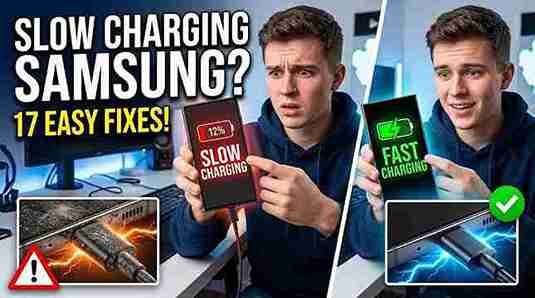
One evening, I plugged my Samsung Galaxy into the charger like I always do before bed. After nearly an hour, I checked the battery, expecting it to be around 60 or 70 percent.
It was only at 19%.
At first, I thought the battery was dying. Then I blamed the latest software update. I even considered buying a new phone because it felt like something serious had gone wrong.
The next day, I decided to investigate instead of spending money.
I tried a different cable.
Nothing changed.
Then I switched to another charging adapter.
The phone charged a little faster, but it still wasn’t normal.
Finally, I looked inside the charging port with a flashlight.
It was packed with dust and pocket lint.
After carefully cleaning it, my phone started charging almost like new again.
That experience taught me something important. A slow-charging Samsung phone doesn’t always mean you need expensive repairs. Most of the time, the issue is surprisingly simple.
Over the next few weeks, I tested different chargers, charging settings, software options, and battery-saving tricks. Some worked immediately, while others made almost no difference.
This guide brings together everything that actually helped.
If your Samsung phone is taking forever to charge, don’t panic yet. There’s a good chance you can fix it yourself in just a few minutes.
How to Tell If Your Samsung Is Actually Charging Slowly
Sometimes we think the phone is charging slowly when it’s actually behaving normally.
Here are a few signs that something isn’t right.
It Takes More Than Three Hours to Fully Charge
Modern Samsung phones with Fast Charging usually need somewhere between one and two hours to reach 100%, depending on the battery size and charger.
If yours regularly needs three or four hours, something deserves attention.
The Battery Percentage Barely Moves
Imagine plugging your phone in at 15%.
Thirty minutes later, it’s only at 20%.
That’s a clear warning sign.
You See “Charging” Instead of “Fast Charging”
Samsung phones usually display messages such as:
- Charging
- Fast Charging
- Super Fast Charging
- Super Fast Charging 2.0
If your charger supports fast charging but your phone only says “Charging,” there may be a problem with the charger, cable, settings, or charging port.
The Phone Gets Very Hot
A little warmth is perfectly normal.
But if the phone becomes too hot while charging, Samsung automatically slows the charging speed to protect the battery.
I’ve noticed this especially during summer or while charging inside a thick phone case.
Battery Keeps Dropping While Charging
This one surprised me.
I once left YouTube playing while downloading several apps in the background.
Even though the charger was connected, the battery continued dropping.
The charger wasn’t the problem.
The phone was simply using more power than it was receiving.
Why Is My Samsung Charging Slowly?
There isn’t just one reason.
Several small issues can lead to noticeably slower charging.
Here are the most common ones I’ve personally encountered.
1. A Worn-Out Charging Cable
Charging cables don’t last forever.
After months of bending, twisting, and being stuffed into bags, the internal wires begin wearing out.
From the outside, everything looks fine.
Inside, however, the cable can’t deliver power efficiently anymore.
Replacing my old cable immediately improved charging speed.
2. Using a Cheap Charger
This is one mistake I made without realizing it.
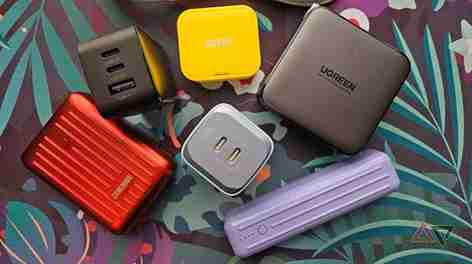
I bought a low-cost charger from a local shop because it looked almost identical to the original Samsung charger.
The phone charged, but painfully slowly.
Once I switched back to a genuine Samsung-compatible fast charger, the difference was obvious.
Cheap chargers often provide unstable power and sometimes lack proper fast-charging support.
3. Dust Inside the Charging Port
This turned out to be my biggest issue.
Every day, your phone collects tiny fibers from your pocket.
Over time, those fibers get packed tightly into the USB-C port.
Eventually, the charging cable can’t make proper contact.
A quick inspection with a flashlight revealed the problem immediately.
Cleaning the port carefully restored normal charging speed.
4. Fast Charging Is Disabled
Many people don’t even know Samsung lets you turn Fast Charging off.
After a software update or factory reset, the setting may change.
It’s worth checking before trying anything more complicated.
5. Too Many Apps Running
Your charger supplies power.
Your phone consumes power.
If heavy apps are running, charging becomes much slower because the battery is being used at the same time.
Games, video editing apps, GPS navigation, video calls, and large downloads are common examples.
6. Overheating
Samsung phones are designed to protect themselves.
When the battery gets too hot, charging speed automatically drops.
This isn’t a bug.
It’s a safety feature.
If you’ve been using the camera outdoors, gaming for an hour, or sitting in direct sunlight, let the phone cool before charging.
7. Battery Wear
No battery lasts forever.
After hundreds of charging cycles, batteries naturally lose efficiency.
If your Samsung phone is several years old, battery aging could be contributing to slower charging.
Fortunately, that’s usually one of the last things to consider, not the first.
At this point, we’ve identified the most common reasons behind a slow charging Samsung phone. The good news is that most of them are easy to fix without spending any money.
Practical Fixes That Made My Samsung Charge Fast Again
After figuring out the possible causes, I stopped guessing and started testing one fix at a time. I didn’t want to replace my phone or spend money on repairs unless I was sure something was actually broken.
Surprisingly, the first few fixes made the biggest difference.
If your slow charging Samsung phone is frustrating you, work through these solutions in order. Start with the easy ones because they’re the most common.
Fix 1: Inspect Your Charging Cable Carefully
The charging cable is usually the first thing people overlook.
I had a USB-C cable that looked perfectly fine. There were no cuts, no exposed wires, and the connector still fit into the phone.
But charging was painfully slow.
When I borrowed a newer Samsung cable from a friend, my phone started charging much faster. That old cable had simply worn out on the inside.
Signs Your Cable Needs Replacing
Look for these warning signs:
- The cable only works in certain positions.
- Charging starts and stops randomly.
- The connector feels loose.
- The cable becomes unusually warm.
- Charging speed has gradually become slower.
Even if the cable looks good from the outside, the internal wiring may be damaged.
My Tip
If you own more than one USB-C cable, test each one before buying a replacement. It takes only a few minutes and can save you money.
Fix 2: Use a Charger That Supports Samsung Fast Charging
This mistake cost me several days of frustration.
I was using a charger from an older phone because it seemed compatible.
Technically, it worked.
Practically, it was charging at half the normal speed.
Samsung phones perform best with chargers that support their fast-charging standards.
Depending on your model, your phone may support:
- 15W Fast Charging
- 25W Super Fast Charging
- 45W Super Fast Charging 2.0
If your adapter only provides 5W or 10W, charging will naturally take much longer.
How to Check
Look at the text printed on your charging adapter.
It usually lists the power output.
If you aren’t using the original Samsung charger, check whether the replacement supports the charging speed your phone was designed for.
My Experience
Switching from an old 10W adapter to a proper 25W fast charger reduced charging time by nearly half.
Fix 3: Clean the Charging Port Safely
This was the real solution in my case.
I couldn’t believe how much lint had collected inside the charging port.
Every time I put my phone into my jeans pocket, tiny fibers gathered inside the USB-C connector.
Eventually, the charging cable couldn’t connect properly.
What You’ll Need
- A flashlight
- A wooden toothpick or a plastic cleaning pick
- A can of compressed air (optional)
Avoid using:
- Metal pins
- Needles
- Safety pins
- Screwdrivers
Metal tools can damage the charging pins.
Step-by-Step
Step 1
Turn your Samsung phone completely off.
Step 2
Shine a flashlight into the charging port.
You may notice dust, lint, or tiny debris.
Step 3
Use a wooden toothpick to gently remove the dirt.
Don’t force anything.
Take your time.
Step 4
If available, blow compressed air into the port to remove the remaining dust.
Step 5
Reconnect the charger and test the charging speed.
In my case, this simple cleaning solved almost everything.
Fix 4: Make Sure Fast Charging Is Enabled
Some Samsung users don’t realize this setting can be turned off.
It may happen after a software update, restoring factory settings, or transferring data from another device.
Here’s how to check.
Steps
- Open Settings.
- Tap Battery.
- Select Charging Settings or More Battery Settings (the wording varies by model).
- Turn on Fast Charging.
- If your phone supports it, enable Super Fast Charging as well.
After enabling the option, reconnect your charger.
You should see a message like:
- Fast Charging
- Super Fast Charging
If you still only see “Charging,” continue with the next fixes.
Fix 5: Avoid Charging Through a Laptop or Car USB Port
I made this mistake while working.
My Samsung stayed connected to my laptop all afternoon.
After three hours, the battery still wasn’t full.
The reason is simple.
Many laptop USB ports deliver much less power than a dedicated wall charger.
The same applies to:
- Older power banks
- Car USB ports
- Desktop computer USB ports
- Cheap extension hubs
Whenever possible, plug your phone directly into a quality wall charger.
You’ll notice the difference almost immediately.
Fix 6: Remove Thick Phone Cases While Charging
This tip helped me during the summer.
I noticed my Samsung became quite warm while charging inside a heavy protective case.
Samsung automatically slows charging when the battery temperature rises too much.
Removing the case allowed heat to escape more easily.
The phone stayed cooler and charging speed improved.
This isn’t necessary every time, but it’s worth trying if your phone regularly feels hot while charging.
Fix 7: Stop Using the Phone While It’s Charging
I’ll admit it—I used to do this all the time.
I’d plug in my phone and immediately start:
- Watching YouTube
- Scrolling social media
- Playing games
- Editing photos
- Downloading large files
The battery percentage barely increased because the phone was consuming almost as much power as it received.
Now I let the phone rest for 20 to 30 minutes whenever possible.
The improvement is noticeable.
Best Practice
If you need a quick battery boost before leaving home:
- Plug in the charger.
- Lock the screen.
- Leave the phone untouched.
You’ll gain much more battery in the same amount of time.
Fix 8: Restart Your Samsung Phone
It sounds too simple, but it works more often than people expect.
Sometimes background apps, temporary software glitches, or system processes interfere with charging performance.
A quick restart clears many of these temporary issues.
To restart:
- Hold the Power button and Volume Down button.
- Tap Restart.
- Wait for the phone to turn back on.
- Plug the charger back in.
It only takes a minute and is always worth trying before moving on to more advanced fixes.
Fix 9: Charge in a Cooler Environment
One thing I learned after several summers is that temperature has a huge impact on charging speed.
I once left my phone charging near a sunny window. Instead of charging quickly, it became warm and the battery percentage increased very slowly.
After moving it to a cool room, the charging speed improved.
Avoid Charging:
- In direct sunlight
- Inside a hot car
- Under a pillow or blanket
- Near heaters
- On thick fabric that traps heat
A hard, flat surface allows heat to escape much better.
Small Changes Can Make a Big Difference
At this stage, my Samsung phone was already charging much faster than before.
I hadn’t replaced the battery or paid for repairs. I fixed a few everyday problems that many of us don’t notice until charging becomes painfully slow.
Sometimes it’s a dusty charging port. Other times it’s an old cable, a weak charger, or just using the phone while it’s plugged in.
The good news is that these fixes are quick, safe, and completely free to try.
Advanced Fixes, Battery Health Checks, and When It’s Time for a Repair
By this point, my Samsung phone was charging much faster than before. Cleaning the charging port and replacing the old cable solved most of the problem.
But I also wanted to know what to do if those simple fixes didn’t work.
So I kept testing.
I read Samsung support pages, compared different charging methods, and experimented with software settings on my own device. A few more adjustments helped improve charging speed even further.
If your slow charging Samsung problem still isn’t fixed, these are the next things I’d recommend trying.
Fix 10: Update Your Samsung Software
Software updates aren’t just about new features. They often include battery improvements, charging optimizations, and bug fixes.
A friend of mine noticed his Galaxy A54 started charging slower after an app update. A few days later, Samsung released a software update that fixed the issue.
It’s always worth checking.
How to Update Your Phone
- Open Settings.
- Scroll down to Software Update.
- Tap Download and Install.
- Install any available update.
- Restart your phone after the installation.
Even if the update doesn’t directly mention charging, it may fix background issues affecting battery performance.
Fix 11: Boot Into Safe Mode
Sometimes the problem isn’t your charger or battery.
It could be an app.
Battery saver apps, antivirus software, game boosters, or poorly optimized apps can interfere with charging.
Safe Mode temporarily disables all third-party apps.
If charging becomes normal in Safe Mode, you’ve found the source of the problem.
How to Enter Safe Mode
- Press and hold the Power button.
- Touch and hold Power Off.
- Tap Safe Mode.
- Wait for the phone to restart.
Now plug in your charger.
If charging speed improves, uninstall recently installed apps one by one until the issue disappears.
Fix 12: Find Apps That Drain Too Much Power
I once installed a wallpaper app that looked amazing.
The battery didn’t.
Even while charging, the battery percentage climbed very slowly because the app kept running in the background.
Samsung makes it easy to identify power-hungry apps.
Check Battery Usage
- Open Settings.
- Tap Battery.
- Open Battery Usage.
Look for apps using an unusually high percentage of battery.
Common examples include:
- Video editors
- Live wallpaper apps
- Some social media apps
- Navigation apps
- Mobile games
If an app is using far more battery than expected, try updating it or uninstalling it.
Fix 13: Turn Off Unnecessary Features While Charging
Every feature running on your phone uses a little power.
When I needed a quick charge before leaving home, I started turning off a few things temporarily.
It actually helped.
Try disabling:
- Bluetooth
- GPS
- Mobile hotspot
- NFC
- High screen brightness
- 5G if you don’t need it
You can even switch on Airplane Mode if you’re not expecting calls.
Because the phone isn’t searching for signals or syncing data, more of the charger’s power goes directly into the battery.
Fix 14: Check for Moisture Detection Warnings
Samsung phones include a useful safety feature that detects moisture in the USB-C port.
Even if the port is dry, leftover moisture, dirt, or debris can sometimes trigger the warning.
When this happens, charging may slow down or stop completely.
If You See a Moisture Warning
- Disconnect the charger.
- Turn off the phone.
- Leave it in a dry place for a while.
- Avoid using a hair dryer or direct heat.
- Carefully inspect the charging port for dirt or lint.
Once the warning disappears, charging usually returns to normal.
Fix 15: Test Another Wall Socket
This sounds almost too obvious.
But I actually discovered one faulty wall socket at home that wasn’t supplying stable power.
Every charger connected to that outlet performed poorly.
I moved to another socket and charging speed improved immediately.
If possible, test your charger in a different room or another building before assuming your phone is the problem.
Fix 16: Check Battery Health
If your Samsung phone is three or four years old, battery aging becomes much more likely.
Rechargeable batteries lose capacity over time.
Eventually, they don’t accept power as efficiently as they once did.
Some warning signs include:
- Battery drains unusually fast.
- Phone heats up often.
- Battery percentage jumps suddenly.
- Phone shuts down before reaching 0%.
- Charging takes much longer than it used to.
If you notice several of these symptoms together, the battery may need replacing.
Fix 17: Factory Reset as a Last Resort
I don’t recommend doing this first.
A factory reset should only be considered after you’ve ruled out chargers, cables, charging ports, apps, and software updates.
Before resetting:
- Back up your photos.
- Save important documents.
- Sync your contacts.
- Make sure you know your Samsung and Google account passwords.
To Reset
- Open Settings.
- Tap General Management.
- Select Reset.
- Tap Factory Data Reset.
- Follow the on-screen instructions.
If a software issue is causing the charging problem, a reset may fix it.
Common Mistakes That Make Samsung Charge Slowly
While troubleshooting my phone, I realized I was making several mistakes without even thinking about them.
Here are the biggest ones.
Using Cheap Accessories
Not all USB-C chargers are equal.
Very cheap adapters often provide inconsistent power and may not support Samsung’s fast charging standards.
Buying a quality charger is worth it.
Ignoring a Dirty Charging Port
Most people never look inside the charging port.
Pocket lint builds up slowly, so you don’t notice it until charging becomes unreliable.
A quick inspection every few months can prevent the problem.
Gaming While Charging
I’ve done it.
The battery barely increased because the game was using almost as much power as the charger supplied.
If you need a fast charge, give the phone a short break.
Leaving Too Many Apps Running
Dozens of background apps can quietly consume battery power.
Closing the apps you aren’t using gives your phone a better chance to charge efficiently.
Charging in Hot Places
Heat is one of the biggest enemies of lithium-ion batteries.
Whenever possible, charge your phone somewhere cool and well-ventilated.
When Should You Visit a Repair Center?
Sometimes the issue isn’t something you can fix at home.
Professional help may be necessary if:
- Your phone won’t charge with any charger.
- The charging port feels loose.
- Charging starts and stops constantly.
- The phone was exposed to water.
- The battery is swollen.
- The phone overheats every time it charges.
- None of the fixes in this guide make any difference.
A qualified technician can test the charging port, battery, and internal charging circuit to identify the exact problem.
Replacing a charging port or battery is usually much cheaper than replacing the entire phone.
My Biggest Takeaway
When my Samsung first started charging slowly, I assumed the worst. I was already looking at new phones online.
Thankfully, the solution was much simpler.
A worn-out cable, dust inside the charging port, and a charger that wasn’t delivering enough power were the real reasons behind the problem.
That experience reminded me that small issues often create big frustrations.
Before spending money on a repair or a new phone, take a little time to check the basics. In many cases, that’s all it takes to get your Samsung charging at its normal speed again.