Play Store Not Downloading: The Day I Couldn’t Install a Single App
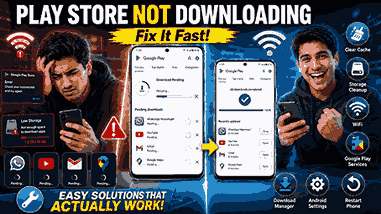
Play Store not downloading was the exact problem I searched for after spending nearly 30 minutes trying to install a simple app.
I had just bought a new Android phone and wanted to download WhatsApp, YouTube, and a few other apps. Everything looked normal at first.
I opened the Google Play Store.
I tapped Install.
The download started…
Then it stopped.
A few seconds later, the app showed “Pending” and stayed there.
I waited.
Nothing happened.
I switched from WiFi to mobile data.
Still nothing.
I restarted the Play Store several times, but every app refused to download.
At first, I thought Google’s servers were down.
Then I blamed my internet connection.
Eventually, I realized the problem was much simpler than I expected.
After trying a few practical fixes, the downloads started working again.
If you’re dealing with the same issue, don’t panic.
Most Play Store download problems can be fixed in just a few minutes, and you don’t need to be a tech expert to do it.
In this guide, I’ll share the exact methods that helped me solve the problem without resetting my phone or losing any data.
How I Knew Something Was Wrong
The issue didn’t appear all at once.
The Play Store gave me several warning signs before I understood what was happening.
Here are the symptoms I noticed.
Apps Stayed on “Pending”
This was the biggest clue.
Instead of downloading immediately, every app stayed on Pending.
No progress.
No error.
Just endless waiting.
Downloads Never Started
Sometimes the Play Store looked like it was preparing the download.
The progress bar appeared for a second.
Then it disappeared without downloading anything.
Downloads Stopped Halfway
A few apps actually began downloading.
But before reaching 100%, they suddenly stopped.
Retrying didn’t help.
Error Messages Appeared
Depending on the app, I occasionally saw messages like:
- Download Pending
- Can’t Download App
- Something Went Wrong
- Try Again
These errors can look different on different Android phones, but they usually point to the same type of problem.
Other Apps Worked Normally
One thing confused me.
Chrome worked.
YouTube videos played.
WhatsApp messages were sending.
Only the Play Store refused to download apps.
That told me my internet wasn’t completely broken.
Why Does the Play Store Stop Downloading Apps?
After researching and testing different solutions, I realized there isn’t just one cause.
Several small issues can prevent downloads from starting.
Here are the most common ones.
Poor Internet Connection
The Play Store needs a stable internet connection.
Even if websites load slowly, the Play Store may pause downloads until the connection improves.
This happened to me while using weak public WiFi.
Not Enough Storage
One day I spent almost 20 minutes troubleshooting before noticing my phone only had a few megabytes of free storage left.
Without enough available space, new apps simply won’t install.
Even small apps need extra room during installation.
Corrupted Play Store Cache
Like most Android apps, Google Play Store stores temporary files.
Sometimes these files become corrupted.
When that happens, downloads may freeze or fail completely.
Google Play Services Problems
Many people forget about Google Play Services.
The Play Store depends on it to work properly.
If Play Services has a problem, downloads may stop even though the Play Store itself looks normal.
Download Manager Is Disabled
This surprised me the most.
Android uses a system app called Download Manager.
If it’s disabled, the Play Store can’t download anything.
Most people don’t even know this app exists.
Wrong Date and Time
This sounds strange, but it’s true.
If your phone’s date or time is incorrect, Google’s servers may reject certain requests.
That can stop downloads from working correctly.
Google Account Sync Issues
Your Google account handles app downloads, purchases, and updates.
If your account isn’t syncing properly, the Play Store can become unreliable.
Signing out and back into my Google account fixed the issue once after a software update.
Android Software Bugs
Occasionally, an Android update introduces small software bugs.
Thankfully, Google usually fixes them through future updates.
Keeping your phone updated helps prevent these problems.
Before Changing Random Settings
When the Play Store stopped downloading, I almost started changing every setting I could find.
Thankfully, I stopped myself.
Changing random settings usually makes troubleshooting more difficult.
Instead, I checked a few basic things first.
Test Your Internet
I opened Chrome and visited several websites.
Everything loaded normally.
That confirmed my internet connection wasn’t completely down.
Try Downloading a Small App
Instead of downloading a game that was over 2 GB, I tested a tiny app.
This helped me determine whether the problem was related to storage or downloads in general.
Check Available Storage
I opened my phone’s storage settings and immediately noticed I had almost no free space left.
Deleting a few unnecessary videos gave the phone enough room to work again.
Restart the Phone
It sounds simple.
But a restart refreshes Android, clears temporary glitches, and often solves Play Store issues within minutes.
I never skip this step anymore.
The Biggest Mistake I Made
The first thing I almost did was factory reset my phone.
Looking back, that would have been completely unnecessary.
The real issue was a combination of low storage and corrupted Play Store cache.
Clearing the cache took less than a minute.
After that, my apps downloaded normally again.
That experience taught me an important lesson.
Always start with the easiest solutions first.
Many Play Store problems look serious but are actually caused by small issues that are quick and easy to fix.
Now that you know the most common reasons behind the Play Store not downloading problem, it’s time to start fixing it.
Simple Fixes That Got My Play Store Working Again
After finding out that the Play Store was the only app causing problems, I decided to stop guessing and troubleshoot the issue properly.
I didn’t install any “Play Store repair” apps.
I didn’t factory reset my phone.
I simply worked through the easiest solutions one by one.
To my surprise, one small change was enough to get my downloads working again.
If your Play Store not downloading apps, start with these fixes before trying anything more advanced.
Fix 1: Restart Your Phone
This may sound obvious, but it’s always the first thing I try now.
A simple restart refreshes Android, closes background processes, and fixes temporary software glitches.
When I restarted my phone, the Play Store immediately became more responsive.
Here’s How
- Press and hold the Power button.
- Tap Restart.
- Wait for the phone to turn back on.
- Open the Play Store and try downloading the app again.
This only takes a couple of minutes and often solves the problem.
Fix 2: Check Your Internet Connection
The Play Store needs a stable internet connection.
Sometimes my WiFi looked connected, but the speed was so slow that downloads never started.
I switched to mobile data and tried again.
The app downloaded instantly.
If you’re having trouble, try:
- Switching from WiFi to mobile data.
- Switching from mobile data to WiFi.
- Restarting your router if you’re using WiFi.
- Running an internet speed test.
A weak connection is one of the most common reasons downloads get stuck.
Fix 3: Check Available Storage
This was the real cause of my problem.
My phone was almost full.
There wasn’t enough free space for Android to download and install new apps.
I deleted:
- Old screenshots
- Duplicate photos
- Large videos
- Unused apps
Within a few minutes, I had several gigabytes of free space.
The Play Store started downloading apps normally again.
To Check Storage
Go to:
Settings → Storage
If your storage is almost full, free up some space before trying again.
Fix 4: Pause and Restart the Download
Sometimes downloads simply get stuck.
Instead of waiting forever, I canceled the download and started it again.
Surprisingly, that worked.
To do this:
- Open Google Play Store.
- Cancel the pending download.
- Close the Play Store.
- Reopen it.
- Tap Install again.
It only takes a few seconds.
Fix 5: Clear Google Play Store Cache
This is probably the most effective fix I found.
The Play Store stores temporary files to help it load faster.
Sometimes those files become corrupted.
Clearing the cache doesn’t delete your apps or personal data.
Steps
- Open Settings.
- Tap Apps.
- Find Google Play Store.
- Tap Storage.
- Select Clear Cache.
After doing this, I reopened the Play Store.
The app downloaded immediately.
Fix 6: Clear Google Play Store Data
If clearing the cache doesn’t help, clearing the app data is the next step.
This resets the Play Store back to its default settings.
Don’t worry.
It won’t uninstall your apps.
You’ll simply need to accept the Play Store terms again.
Steps
- Open Settings
- Tap Apps
- Select Google Play Store
- Tap Storage
- Choose Clear Data
Then reopen the Play Store and sign in if necessary.
Fix 7: Clear Google Play Services Cache
Many people only focus on the Play Store.
I made the same mistake.
Google Play Services works behind the scenes and is essential for downloading apps.
When I cleared its cache, several Play Store problems disappeared.
Steps
- Open Settings.
- Tap Apps.
- Find Google Play Services.
- Tap Storage.
- Select Clear Cache.
This only takes a minute.
Fix 8: Make Sure Download Manager Is Enabled
Before solving this issue, I had never heard of Download Manager.
Android uses it to handle downloads from the Play Store.
If it’s disabled, downloads simply won’t start.
To Check
- Open Settings.
- Tap Apps.
- Show System Apps if necessary.
- Find Download Manager.
- Make sure it’s enabled.
If it was disabled, enable it and restart your phone.
Fix 9: Download One App at a Time
I noticed I had several updates waiting.
The Play Store was trying to update multiple apps while downloading a new one.
Sometimes this causes downloads to stay on Pending.
I paused all updates and downloaded just one app first.
Once it finished, the remaining apps updated normally.
Small Fixes Can Solve Big Problems
At first, I expected the solution to be complicated.
Instead, the problem disappeared after I:
- Restarted my phone.
- Switched internet connections.
- Freed up storage.
- Cleared Play Store cache.
- Enabled Download Manager.
None of these steps required technical knowledge.
Together, they solved the issue completely.
One Lesson I Learned
Whenever someone tells me their Play Store not downloading apps, I always ask one question first:
“How much free storage do you have?”
Most people never think about storage until their phone is completely full.
That simple check has solved the problem for several friends and family members.
It’s always worth checking before trying more advanced solutions.
You’ve now completed the basic troubleshooting steps that fix most Google Play Store download problems.
Advanced Fixes When the Play Store Still Won’t Download Apps
If you’ve tried all the basic solutions and the Play Store is still refusing to download apps, don’t worry.
This happened to me after an Android software update.
I had already restarted my phone.
I had cleared the Play Store cache.
I had plenty of free storage.
Still, every app stayed on “Pending.”
At that point, I knew the problem had to be something deeper.
The following solutions take a little longer, but they’re still easy to follow and have helped me fix the issue more than once.
Fix 10: Remove and Add Your Google Account
This was one of the most effective solutions I found.
Sometimes your Google account doesn’t sync properly with the Play Store.
Removing the account and adding it back refreshes the connection.
Before removing your account, make sure you remember your Google password.
Steps
- Open Settings.
- Tap Accounts.
- Select your Google Account.
- Tap Remove Account.
- Restart your phone.
- Add your Google account again.
After doing this, I opened the Play Store and the downloads started working again.
Fix 11: Update Android
Older Android versions can sometimes cause compatibility problems with Google Play Store.
Whenever I notice strange issues, I always check for software updates.
Here’s How
- Open Settings.
- Tap Software Update or System Update.
- Check for updates.
- Download and install any available updates.
Make sure your battery is charged and your phone is connected to WiFi before updating.
Fix 12: Update Google Play Store
Many people don’t realize the Play Store updates itself.
Sometimes that automatic update gets delayed.
Checking for updates manually can solve download problems.
Steps
- Open the Google Play Store.
- Tap your profile picture.
- Go to Settings.
- Expand About.
- Tap Update Play Store.
If an update is available, install it and restart your phone.
Fix 13: Reset Network Settings
I once spent almost an hour trying different fixes before discovering the issue was caused by corrupted network settings.
Resetting them solved everything.
Don’t worry.
This won’t delete your photos, videos, or apps.
It only resets:
- Saved WiFi networks
- Bluetooth connections
- Mobile network settings
Steps
- Open Settings.
- Tap System.
- Choose Reset.
- Select Reset Network Settings.
- Restart your phone.
Reconnect to WiFi afterward and test the Play Store again.
Fix 14: Check Date and Time
This solution sounds strange, but it actually works.
Google servers rely on accurate date and time settings.
If your phone’s clock is wrong, app downloads may fail.
What to Do
Go to:
Settings → Date & Time
Turn on:
- Set Time Automatically
- Set Time Zone Automatically
After enabling these settings, reopen the Play Store.
Fix 15: Disable VPN Temporarily
A VPN can sometimes interrupt communication between your phone and Google’s servers.
I experienced this while testing a free VPN app.
The moment I disconnected it, the Play Store resumed downloading apps.
If you’re using a VPN:
- Disconnect it.
- Restart the Play Store.
- Try downloading again.
Fix 16: Check Google Play Services
Google Play Services works quietly in the background.
Without it, many Android features stop working properly.
If Play Services is disabled or outdated, the Play Store may not download anything.
Go to:
Settings → Apps → Google Play Services
Make sure:
- It’s enabled.
- It has enough storage space.
- It isn’t restricted by Battery Saver.
Fix 17: Boot Into Safe Mode
If the problem started after installing a new app, Safe Mode can help identify the cause.
Safe Mode temporarily disables third-party apps while keeping your personal data safe.
If the Play Store works in Safe Mode, one of your installed apps is likely causing the issue.
Restart normally and uninstall recently installed apps one at a time until the problem disappears.
Fix 18: Check for Google Server Problems
This doesn’t happen often, but Google’s services can occasionally experience temporary outages.
Before changing dozens of settings, check whether other people are reporting similar issues.
If Google’s servers are temporarily unavailable, waiting a short while may be all that’s needed.
Common Mistakes That Can Stop Play Store Downloads
While solving this issue, I realized I had made several mistakes myself.
Here are the biggest ones.
Ignoring Storage Warnings
My phone repeatedly warned me about low storage.
I ignored those notifications.
Eventually, the Play Store stopped downloading anything.
Now I always keep several gigabytes of free space available.
Installing Unofficial APK Files
Downloading apps from unknown websites can interfere with Play Store updates.
I now install apps only through the official Google Play Store whenever possible.
Using Too Many Cleaner Apps
I tested several “phone cleaner” apps that promised better performance.
Some of them constantly cleared background services, which caused Play Store problems.
Android already manages memory quite well on its own.
Forgetting About Download Manager
I didn’t even know Download Manager existed until I started troubleshooting.
If it’s disabled, the Play Store can’t download apps.
It’s a small setting that’s easy to overlook.
Making Too Many Changes at Once
This was probably my biggest mistake.
I changed several settings at the same time.
When something finally worked, I had no idea which change actually fixed the problem.
Now I test one solution at a time.
It’s much easier to identify the real cause.
What I Learned From This Experience
The Play Store looked completely broken.
I thought I’d need to reset my phone or visit a repair center.
Instead, the solution was much simpler.
By patiently working through one fix after another, I found the problem without losing any data.
That experience completely changed how I troubleshoot Android issues.
Simple solutions often work better than complicated ones.
You’ve now learned nearly every practical method for fixing the Play Store not downloading problem.
Frequently Asked Questions, Prevention Tips, and Final Thoughts
By the time I finished testing all these solutions, the Play Store was working exactly as it should.
Apps downloaded without getting stuck.
Updates finished normally.
There were no more “Pending” messages or download errors.
The best part was that I didn’t lose any photos, contacts, or personal files.
Most Play Store problems look much worse than they really are. With a little patience and a step-by-step approach, they’re usually easy to fix.
Before we finish, let’s answer some common questions and look at a few habits that can help prevent this issue from happening again.
Frequently Asked Questions
Why does the Play Store say “Download Pending”?
This usually happens when another download or app update is already running.
It can also happen because of:
- Slow internet
- Low storage space
- Corrupted Play Store cache
- Download Manager issues
- Google account sync problems
Canceling pending downloads and restarting the Play Store often fixes the issue.
Why won’t the Play Store download apps even with WiFi?
I experienced this myself.
My WiFi was connected, but downloads never started.
The cause turned out to be corrupted Play Store cache.
Other possible reasons include:
- Weak WiFi signal
- Router issues
- Incorrect date and time
- Google Play Services problems
Will clearing Play Store cache delete my apps?
No.
Clearing the cache only removes temporary files.
Your installed apps, personal files, photos, and documents remain completely safe.
Is clearing Play Store data safe?
Yes.
It simply resets the Play Store settings.
You may need to accept Google’s terms again or sign in with your Google account, but your installed apps won’t be removed.
Why does my download stop halfway?
This can happen because of:
- Unstable internet
- Low phone storage
- Battery Saver restrictions
- Software bugs
- Interrupted Google Play Services
Restarting the download usually solves temporary interruptions.
Should I factory reset my phone?
Only as a last option.
A factory reset removes apps, settings, and personal data unless you’ve created a backup.
In my experience, every Play Store issue I’ve faced was solved without resetting the phone.
When should I get professional help?
If you’ve already:
- Restarted your phone
- Cleared Play Store cache
- Cleared Play Services cache
- Checked storage
- Updated Android
- Removed and added your Google account
- Reset network settings
and the Play Store still won’t download apps, it’s worth contacting your phone manufacturer or Google Support.
Quick Troubleshooting Checklist
Whenever the Play Store not downloading apps, this is the checklist I follow.
✔ Restart your phone.
✔ Check your internet connection.
✔ Switch between WiFi and mobile data.
✔ Free up storage space.
✔ Cancel and restart the download.
✔ Clear Google Play Store cache.
✔ Clear Google Play Store data.
✔ Clear Google Play Services cache.
✔ Enable Download Manager.
✔ Check automatic date and time.
✔ Update Android.
✔ Update Google Play Store.
✔ Remove and add your Google account.
✔ Reset network settings if needed.
Following these steps has helped me solve almost every Play Store download problem I’ve encountered.
Simple Habits That Prevent Play Store Problems
After fixing this issue a few times, I started following a few simple habits.
Since then, I rarely experience download problems.
Keep Enough Free Storage
I try to keep at least 5 GB of free space on my phone.
Android performs much better when it has room to work.
Update Apps Regularly
Instead of ignoring updates for weeks, I install them regularly.
Smaller, frequent updates are less likely to cause problems than downloading dozens at once.
Avoid Installing Unknown Apps
Apps from unofficial websites can interfere with Android’s normal operation.
Whenever possible, I only install apps through the official Google Play Store.
Restart Your Phone Occasionally
Many people leave their phones running for weeks without restarting them.
I now restart mine every few days.
It clears temporary bugs and refreshes important background services.
Keep Google Play Services Updated
Many Android features depend on Google Play Services.
Keeping it updated helps prevent unexpected Play Store issues.
Signs the Problem May Be Hardware Related
Although software causes most Play Store issues, hardware problems are possible.
You should consider professional repair if:
- Your phone constantly crashes.
- WiFi and mobile data both fail on every app.
- The phone overheats while downloading.
- Internal storage isn’t detected correctly.
- Multiple system apps stop working at the same time.
These situations are less common but may require professional diagnosis.
Final Thoughts
The first time I experienced the Play Store not downloading problem, I thought my phone had developed a serious fault.
I spent far too long worrying before I realized the solution was actually quite simple.
A combination of clearing the Play Store cache, freeing up storage, and restarting my phone solved everything.
Since then, I’ve helped friends and family fix the same issue using these exact steps.
Most of the time, the problem isn’t a damaged phone.
It’s a temporary software or settings issue that only takes a few minutes to resolve.
The biggest lesson I learned was to stay patient.
Don’t rush into a factory reset or install random repair apps.
Start with the simple fixes first.
Work through each solution one at a time.
In many cases, your Play Store will be downloading apps again long before you reach the final step.
Key Takeaways
- Restart your phone before trying advanced solutions.
- Make sure your internet connection is stable.
- Free up storage if your phone is nearly full.
- Clear the Google Play Store cache and data.
- Clear Google Play Services cache.
- Check that Download Manager is enabled.
- Keep your phone’s date and time set automatically.
- Update Android and the Google Play Store regularly.
- Remove and re-add your Google account if syncing fails.
- Avoid factory resetting your phone unless every other solution has failed.
I hope this guide helped you solve the Play Store not downloading problem quickly and without stress. With a little patience and the right troubleshooting steps, you can usually get your apps downloading again in just a few minutes.
You can also visit these pages:
Overheating Phone Solution: 17 Proven Fixes 2026
Slow Charging Samsung Phone? 17 Proven Fixes
App Crashing? 18 Proven Fixes That Actually Solved the Problem
How to Solve Storage Full Problem? 18 Powerful Ways to Free Up Phone Space Fast
Speed Up Laptop
Phone Freezing: Powerful Fixes That Actually Worked for Me 2026
Speed Up Internet: Powerful Ways to Fix a Slow Internet Connection
Phone With No Internet Access: Powerful Ways to Fix the Problem Fast