Phone Lagging: The Day My Fast Phone Suddenly Became Painfully Slow

Phone lagging was the last thing I expected from a phone that had been working perfectly just a few weeks earlier.
One morning, I unlocked my phone to reply to a message. The keyboard took almost three seconds to appear.
I thought it was just a temporary glitch.
A few minutes later, I opened YouTube.
The app took forever to load.
Then I switched to Instagram, and the screen froze for a couple of seconds before finally responding.
By the end of the day, even scrolling through my photo gallery felt slow.
At first, I blamed the phone.
I even started looking at new Android devices online because I thought mine had reached the end of its life.
Thankfully, I decided to spend some time troubleshooting before spending money on a replacement.
After trying several simple fixes, my phone felt fast again.
The best part?
I didn’t install any “phone booster” apps or factory reset my device.
If your phone has become slow, freezes randomly, or takes forever to open apps, you’re not alone.
I’ve been through the same problem, and in this guide, I’ll show you the methods that actually worked for me.
How I Realized My Phone Was Lagging
The slowdown didn’t happen overnight.
It started with small delays that became worse over time.
These were the first warning signs I noticed.
Apps Took Too Long to Open
Apps that normally opened instantly suddenly needed several seconds.
Even basic apps like Chrome, Calculator, and WhatsApp felt slower than usual.
The Keyboard Became Slow
This was one of the most frustrating parts.
I’d tap a text field, but the keyboard wouldn’t appear immediately.
Sometimes I finished thinking about my reply before I could even start typing.
The screen froze randomly
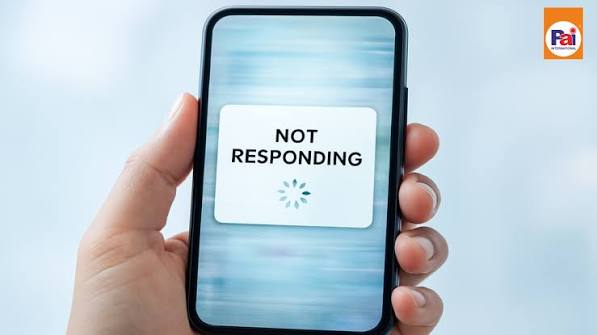
Occasionally, my phone stopped responding for a few seconds.
Touches didn’t register.
Scrolling became jerky.
Then everything suddenly worked again.
Switching Between Apps Felt Slow
Moving from one app to another wasn’t smooth anymore.
Instead of opening instantly, apps paused before appearing on the screen.
Games Started Lagging
Even games that had always run smoothly began dropping frames.
Simple movements became choppy, making the games much less enjoyable.
The Phone Heated Up Easily
Another thing I noticed was heat.
Even while browsing the internet or watching short videos, my phone became warmer than normal.
That was a sign that something was using more resources than it should.
Why Does a Phone Start Lagging?
When I first searched for answers, I expected there to be one single cause.
Instead, I discovered that phone lag can happen for many different reasons.
Sometimes it’s software.
Sometimes it’s storage.
Sometimes it’s simply too many apps running at once.
Here are the most common causes.
Low Storage Space
This was my biggest problem.
My phone had less than 2 GB of free storage left.
Without enough free space, Android struggled to perform everyday tasks.
Deleting unnecessary files immediately improved performance.
Too Many Background Apps
Many apps continue running even after you close them.
Over time, dozens of background processes can use memory and slow down your phone.
I had several social media apps constantly running without realizing it.
Too Much Cached Data
Apps store temporary files called cache to load faster.
Ironically, when too much cache builds up, the opposite can happen.
Instead of improving speed, it slows everything down.
Outdated Android Version
Software updates don’t just add new features.
They also fix bugs and improve performance.
I had ignored updates for months.
Once I updated Android, the phone became noticeably smoother.
Outdated Apps
Old app versions aren’t always optimized for the latest Android updates.
Updating my apps fixed several performance issues I had been blaming on the phone itself.
Heavy Apps Using Too Much RAM
Some apps consume much more memory than others.
Video editors, large games, and certain social media apps stayed active in the background and reduced available RAM.
Too Many Home Screen Widgets
I love customizing my home screen.
At one point, I had weather widgets, clocks, calendars, news feeds, and battery monitors all updating constantly.
Removing a few unnecessary widgets actually made the phone feel more responsive.
Malware or Suspicious Apps
This wasn’t my problem, but it’s something worth mentioning.
Apps downloaded from unknown websites can slow down your phone by running unwanted background processes.
That’s one reason I now install apps only through the Google Play Store.
Before Trying Complicated Fixes
When my phone became slow, I almost downloaded one of those “RAM Booster” apps.
Luckily, I didn’t.
Most of those apps close background processes temporarily but don’t solve the real problem.
Instead, I checked a few simple things first.
Check Available Storage
I opened:
Settings → Storage
The result surprised me.
My storage was almost full.
Deleting old videos and duplicate photos made an immediate difference.
Restart the Phone
A restart clears temporary processes and refreshes Android.
I hadn’t restarted my phone in over two weeks.
After restarting, the phone already felt slightly faster.
Update My Apps
I opened the Google Play Store and noticed over 20 apps waiting for updates.
After updating them, several apps became much smoother.
Remove Apps I Never Used
I found dozens of apps I hadn’t opened in months.
Deleting them gave me extra storage and reduced background activity.
The Biggest Mistake I Made
The biggest mistake wasn’t ignoring updates.
It wasn’t low storage either.
It was assuming my phone had become “old.”
I was ready to replace it even though nothing was actually wrong with the hardware.
After spending about 20 minutes cleaning up the phone and updating the software, it felt almost like new again.
That experience taught me an important lesson.
A slow phone doesn’t always mean you need a new one.
Most of the time, it’s simply asking for a little maintenance.
Now that you understand why a phone lagging problem happens, it’s time to start fixing it.
Simple Fixes That Made My Phone Feel Fast Again
After realizing my phone wasn’t actually broken, I stopped searching for miracle apps and started fixing the real problems.
I didn’t install any “RAM booster.”
I didn’t factory reset my phone.
Instead, I worked through a few simple solutions one by one.
Within half an hour, my phone felt noticeably faster.
If your phone lagging is making everyday tasks frustrating, these are the first fixes I recommend.
Fix 1: Restart Your Phone
This sounds too simple, but it works surprisingly well.
My phone had been running continuously for more than two weeks without a restart.
Background processes had built up, and the system needed a fresh start.
After restarting, the phone immediately became smoother.
Here’s How
Press and hold the Power button.
Tap Restart.
Wait for the phone to turn back on.
Use it normally for a few minutes.
Many temporary performance issues disappear after a simple restart.
Fix 2: Free Up Storage Space
This made the biggest difference for me.
When I checked my storage, I had less than 2 GB available.
Android needs free space for temporary files, app updates, and smooth performance.
I deleted:
Old screenshots
Duplicate photos
Large videos
Downloaded files I no longer needed
Unused apps
After freeing up several gigabytes, my phone responded much faster.
Check Your Storage
Go to:
Settings → Storage
If your storage is almost full, cleaning it up should be your first priority.
Fix 3: Close Unnecessary Background Apps
I was surprised by how many apps were still running.
Music apps, social media, shopping apps, and browsers were all active in the background.
These apps consume RAM even when you’re not using them.
Close apps you don’t need instead of leaving dozens running all day.
Your phone will have more memory available for the apps you’re actually using.
Fix 4: Clear App Cache
Over time, apps collect temporary files.
While cache helps apps load faster, too much of it can slow them down.
I cleared the cache for apps I use every day, including:
Chrome
YouTube
TikTok
The improvement wasn’t dramatic at first, but after clearing several apps, the overall performance became smoother.
Steps
Open Settings.
Tap Apps.
Choose an app.
Tap Storage.
Select Clear Cache.
Avoid tapping Clear Data unless you know what it does.
Fix 5: Update Android
I had ignored a system update for weeks because I didn’t want to wait for it to install.
That was a mistake.
The update included bug fixes and performance improvements.
After installing it, the phone became noticeably faster.
To Check for Updates
Go to:
Settings → Software Update
If an update is available, install it when your battery is charged and you’re connected to WiFi.
Fix 6: Update Your Apps
Outdated apps can cause crashes, lag, and high battery usage.
I opened the Play Store and found more than 20 apps waiting for updates.
After updating them, several apps opened faster and ran much more smoothly.
Keeping your apps updated is one of the easiest ways to improve performance.
Fix 7: Remove Apps You Never Use
Like many people, I had installed dozens of apps just to try them.
Months later, they were still sitting on my phone.
Some of them continued running background services.
I removed everything I no longer needed.
The phone gained extra storage and felt much lighter afterward.
If you haven’t opened an app in months, you probably don’t need it.
Fix 8: Reduce Home Screen Widgets
I enjoy customizing Android, but I eventually realized I had gone too far.
My home screen included:
Weather widget
Clock widget
Calendar widget
News feed
Battery monitor
Each widget refreshed regularly, using memory and battery.
After removing the ones I rarely looked at, the phone became more responsive.
Fix 9: Disable Unnecessary Animations
Android animations look nice, but they can make an older phone feel slower.
Reducing animation effects made my phone feel much quicker when opening apps and switching between screens.
If your phone supports animation settings in Developer Options, lowering the animation scale can make navigation feel more responsive.
Just be careful when changing Developer Options and avoid modifying settings you don’t understand.
Small Changes Can Make a Big Difference
At first, I expected one magical solution.
Instead, it was several small improvements working together.
I:
Restarted my phone.
Freed up storage.
Cleared app cache.
Updated Android.
Updated my apps.
Removed unused apps.
Reduced home screen widgets.
Each step improved performance a little.
Together, they completely changed how the phone felt.
The Lesson I Learned
When people notice a phone lagging, they often think the hardware has become outdated.
That was exactly what I believed.
The truth was much simpler.
My phone was overloaded with unnecessary files, unused apps, and outdated software.
Once I cleaned everything up, it felt almost like a brand-new device.
Sometimes the best upgrade isn’t buying a new phone.
It’s taking a little time to optimize the one you already have.
You’ve now completed the basic performance improvements that solve most lag problems.
Advanced Fixes When Your Phone Is Still Lagging
If you’ve tried all the basic fixes and your phone is still slow, don’t lose hope.
I reached this point myself.
I had already restarted the phone.
I had cleaned up my storage.
I had updated Android and removed unused apps.
The phone was definitely better, but it still lagged occasionally.
That’s when I started looking deeper.
The following solutions helped me squeeze even more performance out of my Android phone without spending any money.
Fix 10: Find Apps That Use Too Much RAM
One thing I discovered was that not all apps use your phone’s memory equally.
Some apps continue running in the background long after you’ve closed them.
Social media apps, messaging apps, and games were using much more RAM than I expected.
If your phone has limited RAM, just one heavy app can slow everything down.
What You Can Do
Open:
Settings → Battery → Battery Usage
or
Settings → Apps
Look for apps that are always active even when you’re not using them.
If you rarely use them, uninstall them or restrict their background activity.
Fix 11: Turn Off Background Activity for Unused Apps
Many apps constantly refresh in the background.
They check notifications, update content, and sync data even when you’re sleeping.
I found several shopping and news apps doing this all day.
After limiting their background activity, my phone became smoother and the battery lasted longer too.
Fix 12: Scan Your Phone for Harmful Apps
A few months ago, I downloaded a free app from an unknown website.
Soon after, my phone became slower than usual.
After removing that app, performance improved almost immediately.
That’s when I realized not every app is safe.
Google Play Protect can help identify suspicious apps.
To Check
- Open the Google Play Store.
- Tap your profile picture.
- Select Play Protect.
- Run a security scan.
If it finds anything suspicious, remove the app immediately.
Fix 13: Reduce Auto-Sync for Apps You Don’t Need
Not every app needs to sync all day.
Cloud storage, email apps, shopping apps, and social media services can all sync automatically.
The more apps syncing at the same time, the harder your phone has to work.
I disabled syncing for apps I rarely use, and I noticed fewer slowdowns throughout the day.
Fix 14: Keep Your Home Screen Simple
At one point, I had multiple pages filled with widgets, live wallpapers, and animated themes.
It looked great.
It didn’t perform great.
After switching to a simple wallpaper and removing unnecessary widgets, navigation became much smoother.
Sometimes less really is more.
Fix 15: Check Battery Saver Settings
Battery Saver is useful when your battery is low.
However, it also limits your phone’s performance.
One afternoon I forgot Battery Saver was still enabled.
The phone felt unusually slow.
As soon as I turned it off, the performance returned to normal.
If your phone is constantly lagging, check whether Battery Saver is active.
Fix 16: Restart Your Phone Regularly
This became one of my new habits.
Previously, I only restarted my phone when something went wrong.
Now I restart it every few days.
It clears temporary files, refreshes memory, and prevents many small software glitches from building up.
It only takes a minute.
Fix 17: Reset All Settings
If nothing else works, resetting your phone’s settings can help.
This is different from a factory reset.
It doesn’t delete your photos, videos, or apps.
Instead, it restores system settings like WiFi, Bluetooth, permissions, and preferences back to default.
Sometimes a hidden setting causes unexpected performance problems.
Resetting those settings solved a lag issue on one of my older phones.
When the Hardware Is the Real Problem
Sometimes software isn’t the issue.
Older phones naturally become slower over time.
If your phone has:
- Very little RAM
- An older processor
- Nearly full internal storage all the time
you may eventually notice slower performance no matter how well you optimize it.
That doesn’t mean the phone is broken.
It simply has hardware limitations.
Even then, following the tips in this guide can make it much more usable.
Common Mistakes That Make a Phone Even Slower
While trying to fix my own phone, I made several mistakes.
Hopefully, you can avoid them.
Installing “Speed Booster” Apps
I tried a few cleaner apps that promised to make my phone faster with one tap.
Most of them did very little.
Some even showed too many ads and consumed extra battery.
Android already manages memory quite well on its own.
Ignoring Storage Warnings
For weeks, my phone warned me that storage was running low.
I ignored those messages.
Eventually, apps became slow, updates failed, and the phone started freezing.
Now I always keep several gigabytes of free storage available.
Keeping Too Many Apps Installed
It’s easy to forget about apps you downloaded months ago.
Even if you never open them, some continue running background services.
Every few months, I review my installed apps and remove anything I no longer use.
Never Restarting the Phone
Many people treat their phones like they never need a reboot.
I used to do the same.
Restarting regularly helps clear temporary bugs and improves performance.
Downloading Apps From Unknown Sources
Installing APK files from untrusted websites can lead to performance issues, unwanted software, or even security risks.
Whenever possible, stick with the official Google Play Store.
What I Learned After Fixing My Phone
The biggest surprise wasn’t how I fixed the problem.
It was realizing how many small habits had slowly made my phone slower.
No single issue caused the lag.
It was a combination of:
- Full storage
- Too many background apps
- Outdated software
- Unused apps
- Cached files
Once I fixed those issues, my phone became smooth again.
It reminded me that regular maintenance is just as important for a phone as it is for a computer.
You’ve now learned the advanced methods that can solve even stubborn phone lagging problems.
Frequently Asked Questions, Prevention Tips, and Final Thoughts
After trying all these fixes, my phone felt completely different.
Apps opened faster.
Scrolling became smooth again.
The keyboard responded instantly.
Even games that used to stutter were running much better.
The biggest surprise was that I didn’t need to buy a new phone.
A little cleanup and a few smart changes were enough to bring it back to life.
If your phone lagging problem has been frustrating you, don’t give up too quickly. Most slow phones can be improved without spending any money.
Frequently Asked Questions
Why is my phone lagging even though it’s new?
A new phone isn’t always free from performance issues.
It can slow down because of:
- Too many apps running in the background
- Low storage space
- Software bugs
- Pending system updates
- Poor app optimization
Even brand-new phones benefit from regular maintenance.
Does low storage make a phone slower?
Yes.
Android needs free storage to create temporary files and install updates.
When your storage is almost full, the phone has to work much harder, which can cause lag, freezing, and slower app launches.
I try to keep at least 5 GB of free space available at all times.
Is clearing cache safe?
Absolutely.
Clearing an app’s cache only removes temporary files.
It won’t delete your photos, messages, contacts, or installed apps.
It’s one of the safest ways to improve performance.
Should I use phone cleaner apps?
In my experience, most cleaner apps don’t make a noticeable difference.
Some even consume extra battery and display too many advertisements.
Android already does a good job of managing memory on its own.
Simple manual cleanup usually works much better.
Can a software update fix lag?
Yes.
Many Android updates include performance improvements and bug fixes.
If your phone feels slow after skipping updates for months, installing the latest version may improve overall speed.
When should I factory reset my phone?
Only after you’ve tried everything else.
A factory reset removes apps, settings, and personal files unless you’ve backed them up.
For me, it has always been the last option, not the first.
Quick Performance Checklist
Whenever I notice my phone becoming slow, I go through this simple checklist.
✔ Restart the phone.
✔ Check available storage.
✔ Delete unnecessary photos and videos.
✔ Remove apps I don’t use.
✔ Clear app cache.
✔ Update Android.
✔ Update all installed apps.
✔ Close unnecessary background apps.
✔ Scan the phone with Google Play Protect.
✔ Restart the phone again after making changes.
Following this routine has helped me avoid major performance problems.
Simple Habits That Keep Your Phone Fast
Once I solved the lag issue, I changed a few habits.
Since then, my phone has stayed much faster.
Clean Storage Every Month
I spend about ten minutes each month deleting unnecessary screenshots, downloads, and duplicate files.
Small cleanups prevent bigger problems later.
Install Apps You Actually Need
It’s tempting to download every interesting app you see.
I used to do that all the time.
Now I only install apps that I know I’ll actually use.
Less clutter means better performance.
Keep Apps Updated
Developers regularly release updates to improve speed, fix bugs, and enhance security.
Updating apps keeps everything running smoothly.
Restart Your Phone Every Few Days
A quick restart refreshes Android and clears temporary issues before they become noticeable.
It’s a simple habit that makes a surprising difference.
Avoid Filling Storage Completely
Whenever my storage reaches around 80 to 85 percent, I start cleaning it up.
Waiting until it’s completely full usually leads to lag and other performance problems.
Signs It Might Be Time for a New Phone
Most lag issues can be fixed, but sometimes hardware becomes the limiting factor.
You might consider upgrading if:
- Your phone has very little RAM.
- The processor is several years old.
- Apps no longer support your Android version.
- The battery drains extremely fast.
- Performance remains poor even after a factory reset.
Even then, try every solution in this guide before replacing your device.
What Helped Me the Most
After all my testing, these were the changes that had the biggest impact:
- Freeing up storage space
- Removing unused apps
- Clearing app cache
- Updating Android
- Updating installed apps
- Restarting the phone regularly
None of these fixes took very long.
Together, they made my phone feel almost brand new.
Final Thoughts
When my phone lagging problem first started, I assumed the phone had reached the end of its life.
I even started comparing prices for a replacement.
Thankfully, I decided to troubleshoot the issue first.
That decision saved me money and taught me an important lesson.
A slow phone doesn’t always mean you need a new one.
More often than not, it’s simply asking for a little maintenance.
By cleaning up storage, updating software, removing unnecessary apps, and following a few good habits, you can keep your Android phone running smoothly for much longer.
The next time your phone starts slowing down, don’t panic.
Start with the simple fixes in this guide, work through them one step at a time, and you’ll likely solve the problem without needing expensive repairs or a new device.
Key Takeaways
- Restart your phone regularly to clear temporary system issues.
- Keep at least 5 GB of free storage for smoother performance.
- Remove apps you no longer use.
- Clear app cache to reduce unnecessary temporary files.
- Update Android and your apps regularly.
- Limit background activity for apps you rarely use.
- Avoid downloading apps from untrusted sources.
- Don’t rely on “speed booster” apps to fix lag.
- Perform simple monthly maintenance to keep your phone fast.
- Try every troubleshooting step before considering a factory reset or buying a new phone.
With consistent care and a few minutes of maintenance every month, you can keep your Android device running fast and enjoy a smoother experience every day.