18 Best AI Productivity Tools That Help Me Save Hours Every Week (2026 Guide)
Why I Finally Started Using AI Productivity Tools
About a year ago, I noticed something frustrating.
I wasn’t short on ideas. I wasn’t lazy either. The real problem was that I kept switching between tasks all day. I’d start writing an article, then stop to answer emails. After that, I’d search for information, organize notes, edit screenshots, and somehow end up with very little actual work completed.
At the end of the day, I felt busy—but not productive.
One evening, I tracked how I spent my time. The results surprised me. Nearly half of my working hours were spent on repetitive tasks that didn’t require much creativity. Things like summarizing notes, fixing grammar, searching for information, organizing documents, and rewriting the same paragraph over and over again.
That’s when I decided to experiment with a few AI tools for productivity.
I wasn’t expecting a miracle. In fact, I was a little skeptical. I had seen plenty of exaggerated claims online saying AI could replace entire teams or finish hours of work with a single click. My experience turned out to be much more realistic.
The best AI productivity tools didn’t replace my work. They simply removed the repetitive parts that slowed me down.
Instead of spending twenty minutes rewriting a paragraph, I could polish it in five.
Instead of searching through dozens of browser tabs for one piece of information, I could find it much faster.
Instead of manually organizing research notes, AI helped me structure everything into something I could actually use.
Those small improvements added up quickly.
Now I use several AI productivity tools almost every day. Not because they’re trendy, but because they genuinely save time and help me stay focused on the work that matters most.
If you’re feeling overwhelmed by endless tasks or you’re simply looking for smarter ways to work, this guide will walk you through the tools that have made the biggest difference for me.
What Is an AI Productivity Tool?
The term AI productivity tool sounds technical, but the idea is actually very simple.
It’s any application that uses artificial intelligence to help you complete tasks faster, reduce repetitive work, or organize information more efficiently.
Instead of replacing your skills, these tools work like digital assistants.
Some help you write.
Others summarize long documents, organize research, answer questions, generate meeting notes, create presentations, edit videos, or even automate repetitive workflows.
The goal isn’t to do less work.
The goal is to spend more time thinking creatively and less time doing repetitive tasks.
How AI Productivity Tools Work
Although every platform works differently, most follow a similar process.
Step 1: You Provide Information
This could be:
- A document
- A question
- Meeting notes
- A prompt
- A spreadsheet
- A webpage
- A recording
- A rough draft
The better your input, the better the AI’s output usually becomes.
Step 2: The AI Understands Your Request
Modern AI models analyze your request and identify patterns, context, and intent.
For example, if you upload meeting notes, the AI can identify:
- Action items
- Deadlines
- Important decisions
- Questions that still need answers
Instead of reading several pages yourself, you receive a clean summary within seconds.
Step 3: It Generates Helpful Output
Depending on the tool, the result might include:
- A rewritten article
- A summarized report
- A to-do list
- Research findings
- A presentation outline
- Coding suggestions
- Video transcripts
- Workflow automation
You still review the results, but much of the repetitive work has already been completed.
Who Should Use AI Productivity Tools?
One thing I like about these tools is that they aren’t only designed for technology professionals.
Almost anyone can benefit from using them.
Students
Students can summarize lecture notes, organize research, improve essays, and prepare study materials much faster.
Freelancers
Freelancers often handle writing, communication, invoicing, research, and project management on their own.
AI helps reduce the time spent on routine tasks so they can focus on delivering quality work.
Content Creators
Whether you’re writing blog posts, recording YouTube videos, or managing social media accounts, AI can assist with brainstorming, scripting, editing, and planning.
Small Business Owners
Running a business involves dozens of daily responsibilities.
AI can help draft emails, organize documents, create marketing content, summarize reports, and automate repetitive processes.
Developers
Developers use AI to explain code, generate snippets, identify bugs, and speed up software development without replacing their own expertise.
Office Professionals
Many office workers use AI to:
- Summarize meetings
- Draft emails
- Organize documents
- Analyze spreadsheets
- Manage schedules
Even saving fifteen minutes each day adds up over an entire year.
What I Look for Before Recommending an AI Productivity Tool
Not every AI application deserves a place in my daily workflow.
I’ve tested tools that looked impressive in advertisements but turned out to be frustrating once I started using them.
Before recommending any AI productivity tool, I consider several factors.
Ease of Use
A good tool shouldn’t require hours of training.
If I can’t understand the basic workflow within a few minutes, it’s probably not saving me time.
Accuracy
Speed means very little if the results aren’t reliable.
Whether it’s summarizing documents or generating text, I always double-check the accuracy before trusting the output.
Real Productivity Benefits
Some AI tools have impressive features that sound exciting but rarely help in real work.
I prefer tools that solve actual problems instead of adding unnecessary complexity.
Integration with Existing Workflows
The best AI tools fit naturally into the apps I already use.
For example, tools that work with Google Docs, Microsoft Office, Notion, Slack, or my browser are much more convenient than standalone platforms that require constant switching.
Value for Money
Not every useful AI tool needs an expensive subscription.
Many excellent platforms offer generous free plans that are more than enough for students, freelancers, and small businesses.
Whenever possible, I recommend starting with the free version before deciding whether premium features are worth paying for.
Quick Comparison of the Best AI Productivity Tools
Before diving into detailed reviews, here’s a quick overview of the 18 AI tools for productivity we’ll cover in this guide. This comparison will help you quickly identify which tools are best suited to your workflow, whether you’re a student, writer, developer, marketer, or business owner.
(We’ll explore each tool in detail, including features, pricing, pros, cons, and my personal experience, in the next section.)
18 Best AI Productivity Tools I Recommend
I’ve tested dozens of AI tools over the past year. Some were genuinely helpful, while others promised a lot but didn’t improve my workflow at all.
The tools below are the ones I’d actually recommend. They each solve a different problem, so there’s no single “best” option for everyone. Instead, think about the tasks that take up most of your day and choose the tools that address those specific challenges.
1. Hemingway Editor
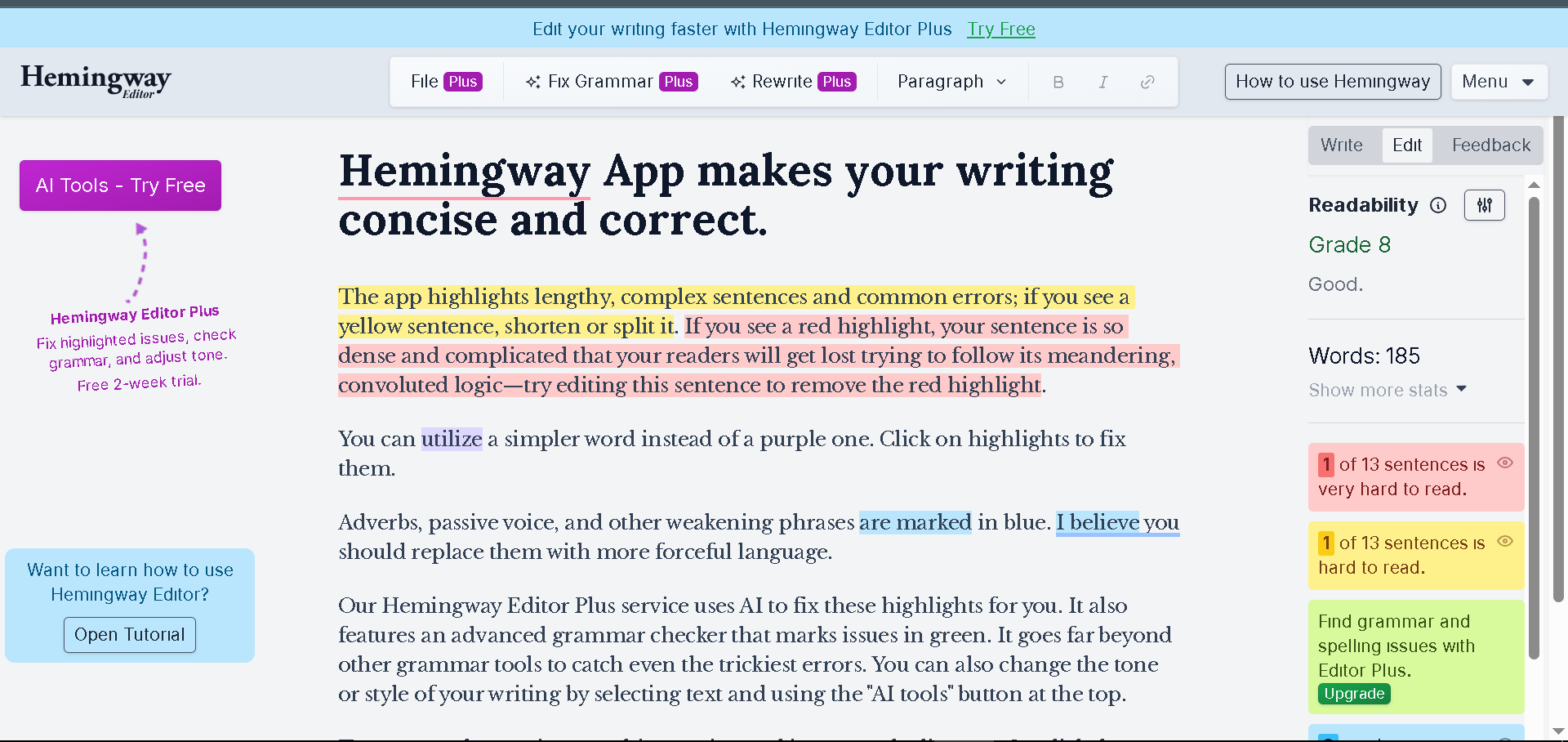
If your work involves writing, Hemingway Editor is one of the simplest tools you can add to your workflow.
Unlike many AI writing assistants that generate entire paragraphs, Hemingway focuses on making your existing writing clearer and easier to read.
I often use it after finishing a blog post. Even when I think my article is complete, Hemingway usually highlights long sentences, passive voice, or complicated wording that I overlooked.
That extra review makes my content much easier to understand.
Key Features
- Readability analysis
- Highlights complex sentences
- Detects passive voice
- Suggests simpler alternatives
- Clean distraction-free editor
Pros
- Extremely easy to use
- Helps improve writing quality
- Great for blog posts and emails
- No steep learning curve
Cons
- Doesn’t replace a full AI writing assistant
- Limited advanced content generation
Pricing
Hemingway offers a free web editor with optional paid features for users who want AI-assisted writing and desktop access.
My Experience
I don’t rely on Hemingway to write articles for me.
Instead, I use it as the final quality check before publishing. It has helped me remove unnecessary words and improve readability without changing my writing style.
Best For
- Bloggers
- Students
- Copywriters
- Freelance writers
- Content marketers
2. Lex.page
Lex.page feels like writing inside a smart document editor.
Instead of staring at a blank page wondering what to write next, you can brainstorm, rewrite, expand, or improve ideas directly within the document.
What impressed me most was how natural the collaboration feels.
Rather than replacing your writing, Lex helps you develop your own ideas.
Key Features
- AI-assisted writing
- Smart editing
- Document collaboration
- Rewrite suggestions
- Brainstorming assistance
Pros
- Modern interface
- Fast responses
- Excellent for long-form writing
- Great collaborative experience
Cons
- Some advanced features require a paid plan
- Best suited for writing rather than general productivity
Pricing
Lex offers a free plan with premium options for users who need additional AI usage.
My Experience
I tested Lex while outlining a long article.
Whenever I felt stuck, I asked it to suggest transitions or expand specific sections. It didn’t replace my ideas, but it helped me keep writing instead of losing momentum.
Best For
- Writers
- Researchers
- Students
- Bloggers
- Teams creating documents
3. Cotypist
Cotypist is designed for people who spend a large part of their day writing.
Instead of constantly switching between applications to ask AI questions, Cotypist stays available while you work and helps generate or improve text much more naturally.
I found it especially useful when replying to emails or rewriting repetitive messages.
Key Features
- AI writing assistance
- Real-time text suggestions
- Works across applications
- Quick rewriting
- Tone adjustment
Pros
- Saves time on repetitive writing
- Easy to use
- Fast responses
- Works with many everyday tasks
Cons
- More useful for heavy writers than occasional users
- Some features depend on platform compatibility
Pricing
Cotypist provides free access with premium plans for users who need higher usage limits.
My Experience
I wouldn’t use Cotypist for writing an entire article, but it’s excellent for polishing messages, editing emails, and rewriting repetitive content.
Best For
- Office professionals
- Customer support teams
- Freelancers
- Business communication
4. Gumloop
If repetitive tasks are slowing you down, Gumloop is worth exploring.
Think of it as an AI-powered automation platform.
Instead of manually repeating the same workflow every day, you can create automated processes that connect different tools together.
For example, you could automatically:
- Collect information from websites
- Organize research
- Process documents
- Generate summaries
- Send results to other applications
Without writing complex code.
Key Features
- AI workflow automation
- Drag-and-drop builder
- Web automation
- Data extraction
- Multi-step task automation
Pros
- Saves hours on repetitive work
- Beginner-friendly interface
- Powerful automation options
- No coding required
Cons
- Takes some time to learn
- More useful for advanced workflows
Pricing
Gumloop offers a free plan with paid subscriptions for users who need larger automation limits.
My Experience
The first workflow I built automatically gathered information from multiple sources and organized everything into one document.
Setting it up took some effort, but afterward it saved me a surprising amount of time each week.
Best For
- Business owners
- Researchers
- Agencies
- Operations teams
- Freelancers handling repetitive tasks
5. Paradigm AI
Paradigm AI focuses on helping users think through problems rather than simply generating text.
While many AI tools rush to provide answers, Paradigm encourages structured reasoning and better decision-making.
I found this particularly useful when planning projects or comparing different approaches before making an important decision.
Key Features
- AI reasoning support
- Project planning
- Structured thinking
- Decision assistance
- Research organization
Pros
- Encourages deeper thinking
- Helpful for planning complex work
- Clean interface
- Good organizational features
Cons
-
Not ideal for quick writing tasks
- Better suited to planning than content creation
Pricing
Paradigm AI offers both free and paid plans depending on usage and advanced features.
My Experience
I used Paradigm AI while planning a content strategy.
Instead of simply generating ideas, it helped organize them into logical steps, making the entire project easier to manage.
Best For
- Entrepreneurs
- Project managers
- Researchers
- Strategic planning
- Business professionals
6. Claude
Claude has become one of my most frequently used AI productivity tools.
Whenever I need to analyze long documents, summarize reports, brainstorm ideas, or improve writing, it’s usually one of the first tools I open.
One thing I appreciate is how well it handles long conversations without losing context.
That makes it especially useful for complex projects.
Key Features
- Long-context conversations
- Document analysis
- Writing assistance
- Brainstorming
- Coding support
- Research summaries
Pros
- Excellent writing quality
- Strong reasoning abilities
- Handles large documents well
- Easy-to-follow responses
Cons
- Some advanced features require a paid subscription
- Like any AI, responses should still be fact-checked
Pricing
Claude includes a free plan along with premium subscriptions that provide higher usage limits and access to more advanced models.
My Experience
I’ve used Claude for everything from improving article outlines to summarizing lengthy research documents.
One feature I particularly like is its ability to explain complex topics in simple language. Instead of overwhelming me with technical details, it usually provides practical, easy-to-understand answers that help me move forward with my work.
Best For
- Writers
- Students
- Researchers
- Developers
- Business professionals
Which Tool Stood Out the Most?
After spending time with these first six tools, I noticed something important.
None of them tries to do everything.
Each one has a clear purpose.
- Hemingway Editor improves readability.
- Lex. page makes writing smoother.
- Cotypist speeds up everyday communication.
- Gumloop automates repetitive workflows.
- Paradigm AI supports planning and structured thinking.
- Claude handles research, writing, and problem-solving exceptionally well.
Rather than installing every AI app you find, start with one or two that solve your biggest productivity challenges. Once those become part of your routine, you can gradually explore additional tools.
7. Perplexity
When I need a quick answer to a question, I don’t always open a traditional search engine anymore. Quite often, I use Perplexity instead.
What makes it different is that it doesn’t just give you a list of links. It provides a direct answer and shows where the information came from, making it much easier to verify facts.
I’ve found it especially useful while researching blog posts or comparing products. Instead of opening ten different websites, I can get a clear overview in just a few minutes.
Key Features
- AI-powered search
- Source citations
- Research summaries
- Follow-up questions
- Real-time web information
Pros
- Saves research time
- Easy to verify information
- Clean interface
- Excellent for learning new topics
Cons
- Still important to double-check critical information
- Advanced features require a premium plan
Pricing
Perplexity offers a generous free version, with a Pro plan available for users who need more advanced AI models and features.
My Experience
One of the biggest advantages I’ve noticed is how much faster research becomes. Instead of reading multiple articles to find one useful paragraph, I usually get a well-organized summary with links to the original sources.
Best For
- Students
- Researchers
- Bloggers
- Journalists
- Professionals who need fast, reliable research
8. NotebookLM
NotebookLM is one of the most interesting AI productivity tools I’ve tested because it focuses on your documents rather than the entire internet.
You can upload PDFs, notes, presentations, or research papers, and the AI uses those files to answer your questions.
Instead of searching through hundreds of pages manually, you simply ask questions in plain English.
Key Features
- Document-based AI assistant
- Research organization
- Smart note summaries
- Question answering
- Source-aware responses
Pros
- Excellent for studying
- Great with long documents
- Organizes research efficiently
- Easy to use
Cons
- Works best when you provide quality documents
- Less useful without uploaded content
Pricing
NotebookLM is available free for many users, with additional features depending on your account and usage limits.
My Experience
I tested NotebookLM with several long research documents.
Instead of rereading everything, I asked specific questions like:
- What are the key findings?
- Which section discusses pricing?
- What conclusions were reached?
The time savings were significant.
Best For
- Students
- Researchers
- Writers
- Professionals handling large documents
9. Granola
Meetings can be exhausting, especially when you’re trying to participate while taking detailed notes.
Granola helps solve that problem.
Instead of worrying about writing everything down, it organizes meeting notes automatically so you can stay focused on the conversation.
Key Features
- AI meeting notes
- Automatic summaries
- Action items
- Meeting organization
- Searchable conversations
Pros
- Saves time after meetings
- Well-organized summaries
- Easy to review later
- Reduces manual note-taking
Cons
- Most useful for people who attend frequent meetings
- Some features depend on your meeting platform
Pricing
Granola offers both free and paid plans depending on usage requirements.
My Experience
Although I don’t attend large meetings every day, I tested Granola during project discussions and found the summaries surprisingly accurate.
Instead of replaying recordings later, I already had organized notes waiting for me.
Best For
- Remote teams
- Managers
- Consultants
- Agencies
- Business professionals
10. Wispr Flow
Typing isn’t always the fastest way to work.
Sometimes ideas come much faster when speaking.
Wispr Flow converts your speech into polished text, making it useful for emails, documents, brainstorming sessions, and daily communication.
I found it especially helpful when writing rough drafts because speaking often feels more natural than typing every sentence.
Key Features
- AI voice dictation
- Natural language processing
- Automatic formatting
- Cross-application support
- Fast transcription
Pros
- Very fast
- Accurate speech recognition
- Reduces typing fatigue
- Great for brainstorming
Cons
- Works best in quiet environments
- Requires a microphone
Pricing
Wispr Flow provides free access with premium plans for additional features and higher usage limits.
My Experience
I experimented with writing article introductions by speaking instead of typing.
The result wasn’t perfect, but it gave me a strong first draft much faster than starting from a blank page.
Best For
- Writers
- Students
- Professionals
- Anyone who prefers speaking over typing
11. Loom
Sometimes writing a long email takes more time than recording a short video.
That’s why I keep Loom installed.
Instead of explaining something through several paragraphs of text, I simply record my screen and voice.
Whether I’m showing someone how to use a website or giving project feedback, a two-minute video often communicates much more clearly.
Key Features
- Screen recording
- Webcam recording
- AI meeting summaries
- Video sharing
- Team collaboration
Pros
- Extremely easy to use
- Saves communication time
- Great for tutorials
- Works well for remote teams
Cons
- Requires good internet for sharing videos
- AI features vary by subscription plan
Pricing
Loom includes a free version with paid plans for businesses and advanced users.
My Experience
Whenever I need to explain a technical process, Loom is almost always faster than typing detailed instructions.
People also seem to understand visual demonstrations much more quickly.
Best For
- Remote teams
- Teachers
- Freelancers
- Customer support
- Agencies
12. Descript
Descript completely changed how I think about audio and video editing.
Traditional editing software can feel overwhelming, especially for beginners.
Descript takes a different approach.
Instead of editing on a complicated timeline, you edit the transcript just like a document.
Delete a sentence from the text, and it’s removed from the video as well.
It’s surprisingly intuitive.
Key Features
- AI video editing
- Audio editing
- Automatic transcription
- Screen recording
- AI voice tools
- Filler word removal
Pros
- Beginner-friendly
- Fast editing workflow
- Excellent transcription quality
- Saves hours of editing
Cons
- Professional editors may still need advanced software
- Some AI features require paid plans
Pricing
Descript offers a free plan alongside premium subscriptions with additional editing features and export options.
My Experience
The first time I used Descript, I edited a podcast simply by deleting text from the transcript.
It felt much more natural than moving clips around on a traditional editing timeline, especially for spoken content.
Best For
- Podcasters
- YouTubers
- Content creators
- Educators
- Marketing teams
My Biggest Lesson So Far
After using the first twelve AI productivity tools in this guide, one thing became clear.
The biggest productivity boost doesn’t come from using the most AI tools.
It comes from using the right ones consistently.
At one point, I had more than a dozen AI apps installed. Instead of saving time, I wasted it deciding which tool to use for every task.
Eventually, I simplified my workflow.
Now I rely on a small set of tools that each solve a specific problem:
- Perplexity for fast research.
- NotebookLM for understanding long documents.
- Granola for meeting notes.
- Wispr Flow for voice-to-text writing.
- Loom for quick communication.
- Descript for editing audio and video.
That combination has been far more effective than constantly chasing the latest AI app.
13. v0
If you’ve ever wanted to build a website or web app but didn’t know where to start with the design, v0 can save you a lot of time.
Instead of designing every page manually, you describe what you want in plain English, and the AI generates a modern user interface. It’s especially useful for developers and designers who want a solid starting point instead of a blank screen.
I first tried it while creating a dashboard layout for a small side project. Within a few minutes, I had a clean design that only needed a few adjustments.
Key Features
- AI-generated UI designs
- Prompt-based interface creation
- Responsive layouts
- Code generation
- Modern design components
Pros
- Speeds up UI design
- Produces clean layouts
- Beginner-friendly
- Great starting point for projects
Cons
- Generated designs may still need customization
- Best suited for web projects
Pricing
v0 offers a free plan with paid options for higher usage and additional features.
My Experience
I don’t use v0 to finish an entire project, but it’s excellent for creating a first draft of a website or dashboard. Starting with a well-designed layout saves me a lot of time.
Best For
- Web developers
- UI/UX designers
- Startups
- Product teams
14. Cursor
Cursor has become one of my favorite AI productivity tools for coding.
It’s more than just a code editor. It understands your project, explains code, suggests improvements, and even helps identify bugs.
Instead of constantly switching between documentation and your editor, you can ask questions directly inside the workspace.
Key Features
- AI-powered coding assistant
- Code explanations
- Bug detection
- Smart autocomplete
- Project-wide understanding
Pros
- Speeds up development
- Excellent code suggestions
- Easy debugging
- Saves research time
Cons
- Developers should still review AI-generated code
- Premium features require a subscription
Pricing
Cursor includes a free version along with paid plans that provide more advanced AI capabilities.
My Experience
I found Cursor especially helpful when working with unfamiliar programming languages. Instead of searching online for every small issue, I could ask questions directly in the editor and continue working without breaking my focus.
Best For
- Developers
- Students learning programming
- Software engineers
- Freelancers
15. 21st.dev
21st.dev is designed to help developers discover and reuse modern interface components.
Rather than building every button, card, or navigation menu from scratch, you can browse high-quality components and adapt them to your own projects.
This doesn’t sound like a huge time saver until you’ve spent hours recreating common UI elements.
Key Features
- Ready-made UI components
- Developer resources
- Fast implementation
- Modern design library
- AI-assisted discovery
Pros
- Saves development time
- Beautiful component library
- Easy integration
- Great for rapid prototyping
Cons
- Primarily useful for frontend development
- Customization may still be required
Pricing
Most features are available for free, with premium options depending on usage.
My Experience
Whenever I need inspiration for a new interface, I browse 21st.dev before designing everything myself. It’s much faster than starting from scratch.
Best For
- Frontend developers
- Designers
- Startup teams
- Web agencies
16. Weavy
Collaboration becomes much easier when communication, files, and discussions stay in one place.
That’s where Weavy comes in.
Instead of jumping between multiple apps, teams can integrate collaboration features directly into their own products.
Key Features
- Team collaboration
- Messaging
- File sharing
- Task management
- API integration
Pros
- Improves teamwork
- Easy integration
- Secure communication
- Flexible for businesses
Cons
- Better suited for teams than individual users
- Initial setup may take some time
Pricing
Weavy offers different pricing plans depending on business requirements and API usage.
My Experience
Although I mainly work independently, I tested Weavy during a collaborative project and appreciated how everything stayed organized without switching between several communication tools.
Best For
- Software companies
- Product teams
- Remote businesses
- Enterprise collaboration
17. Pomelli
Pomelli focuses on helping users organize work, manage tasks, and improve personal productivity using AI.
Instead of simply listing tasks, it helps prioritize what deserves your attention first.
One thing I liked was how it encouraged me to focus on completing important work rather than constantly adding new tasks to my list.
Key Features
- AI task management
- Smart scheduling
- Productivity insights
- Goal tracking
- Daily planning
Pros
- Clean interface
- Helps prioritize work
- Easy to organize projects
- Encourages better habits
Cons
- Less useful if you already have a complex productivity system
- Some premium features require a subscription
Pricing
Pomelli offers both free and premium plans based on feature availability.
My Experience
I tested Pomelli for a couple of weeks while managing several writing projects. Having a clear list of priorities reduced the feeling of being overwhelmed.
Best For
- Students
- Freelancers
- Professionals
- Entrepreneurs
18. Kick
Managing finances isn’t usually the most exciting part of running a business.
Kick uses AI to automate bookkeeping tasks, categorize expenses, and simplify financial management.
For freelancers and small business owners, this can save several hours each month.
Key Features
- AI bookkeeping
- Expense tracking
- Financial reports
- Receipt management
- Automated categorization
Pros
- Saves administrative time
- Easy financial organization
- Helpful reports
- Beginner-friendly
Cons
- Still important to review financial records manually
- May not replace professional accounting advice
Pricing
Kick provides subscription plans with different features based on business needs.
My Experience
Although I still review every financial record myself, using AI to organize transactions makes bookkeeping much less stressful than doing everything manually.
Best For
- Freelancers
- Small businesses
- Agencies
- Entrepreneurs
How to Choose the Right AI Productivity Tool
After testing many different platforms, I’ve realized that choosing the right AI productivity tool isn’t about finding the one with the most features. It’s about finding the one that solves your biggest problem.
Here are a few recommendations based on different needs.
For Writers
If writing is a major part of your work, tools like Hemingway Editor, Lex.page, and Claude can help you improve readability, organize ideas, and speed up the writing process without sacrificing quality.
For Students
Students often spend hours researching, organizing notes, and preparing assignments. NotebookLM, Perplexity, and Claude are excellent choices for managing study materials and understanding complex topics.
For Developers
Developers can save time with Cursor, v0, and 21st.dev. These tools simplify coding, UI design, debugging, and rapid prototyping.
For Content Creators
If you create videos, podcasts, or social media content, Descript, Loom, and Wispr Flow can significantly reduce editing and communication time.
For Business Owners
Running a business involves many repetitive tasks. Gumloop, Kick, and Claude can help automate workflows, organize finances, and improve decision-making.
Common Mistakes People Make When Using AI Productivity Tools
Even the best AI tools won’t improve your productivity if you use them the wrong way. Here are a few mistakes I learned to avoid.
Using Too Many Tools at Once
Installing every popular AI app often creates more confusion than efficiency. Start with one or two tools that solve your biggest challenges.
Trusting AI Without Reviewing the Output
AI can make mistakes. Always review important documents, calculations, and research before using them professionally.
Ignoring Privacy
Avoid uploading confidential business information or sensitive personal data unless you’re confident about the platform’s privacy and security policies.
Expecting AI to Replace Critical Thinking
AI should support your decisions, not make them for you. The best results come when you combine AI-generated suggestions with your own knowledge and judgment.
Skipping the Learning Process
Many people give up after trying a tool for just a few minutes. Spend some time learning its features—you’ll often discover shortcuts that save hours in the long run.
Frequently Asked Questions
Are AI productivity tools worth using?
Yes, especially if you regularly handle writing, research, coding, meetings, or repetitive administrative work. The right tools can save time and help you stay focused.
Can I use AI productivity tools for free?
Many popular tools offer free plans with enough features for beginners. As your needs grow, you can decide whether a paid subscription is worthwhile.
Which AI productivity tool is best for beginners?
For general productivity, Claude and Perplexity are excellent starting points. Writers may prefer Hemingway Editor, while developers often benefit from Cursor.
Will AI replace productivity apps?
Not likely. Instead, AI is becoming an important feature inside many existing productivity apps, making them faster and more helpful rather than replacing them entirely.
Are AI productivity tools safe?
Most well-known platforms take security seriously, but it’s still a good idea to avoid sharing confidential information and to review each tool’s privacy policy before uploading sensitive data.
Final Thoughts
When I first started experimenting with AI productivity tools, I expected them to help me finish tasks a little faster. What surprised me most was how much they changed the way I work.
Instead of spending hours on repetitive tasks, I now have more time to plan, solve problems, and create meaningful content. That’s where these tools deliver the most value.
You don’t need all eighteen tools to become more productive. In fact, trying to use every AI app at once can have the opposite effect. Start with one or two that match your workflow, learn them well, and expand your toolkit only when you genuinely need another solution.
The best AI productivity tool isn’t necessarily the most advanced or the most expensive. It’s the one that removes friction from your daily work and helps you focus on what only you can do: think creatively, solve problems, and make better decisions.